> ## Documentation Index
> Fetch the complete documentation index at: https://developers.telnyx.com/llms.txt
> Use this file to discover all available pages before exploring further.

# IVR Demo

> How to build an IVR using Telnyx Voice API. Start building on Telnyx today.

\| [Python](#python) | [Node](#node) | [Ruby](#ruby) |

***

## Python

⏱ **60 minutes build time || <a href="https://github.com/team-telnyx/ivr-demo-python">GithHub Repo</a>**

Telnyx IVR demo built on Voice API V2 and Python with Flask and Ngrok.

In this tutorial, you’ll learn how to:

1. Set up your development environment to use the Telnyx Voice API using Python and Flask.
2. Build a find me/follow me based app via IVR on the Telnyx Voice API using Python.

***

* [Prerequisites](#prerequisites-for-building-an-ivr-with-python)
* [Telnyx Voice API Basics](#telnyx-call-control-basics)

  * [Server and Webhook Setup](#server-and-webhook-setup)
  * [Receiving and Interpreting Webhooks](#receiving-and-interpreting-webhooks)
* [Call Commands](#call-commands)
* [Client State](#client-state)
* [Building the IVR](#building-the-ivr)
* [Creating the IVR](#creating-the-ivr)
* [Answering the Incoming Call](#answering-the-incoming-call)
* [Presenting Options](#presenting-options)
* [Interpreting Button Presses](#interpreting-button-presses)

***

### Prerequisites for building an IVR with Python

This tutorial assumes you've already [set up your developer account and environment](/development) and you know how to [send commands](/docs/voice/programmable-voice/sending-commands) and [receive webhooks](/docs/voice/programmable-voice/receiving-webhooks) using the Telnyx Voice API.

You’ll also need to have `python` installed to continue. You can check this by running the following:

```bash theme={null}
$ python3 -v
```

<Callout type="info">
  After pasting the above content, Kindly check and remove any new line added
</Callout>

Now in order to receive the necessary webhooks for our IVR, we will need to set up a server. For this tutorial, we will be using <a href="https://palletsprojects.com/p/flask/">Flask</a>, a micro web server framework. A quickstart guide to flask can be found on their official website. For now, we will install flask using pip.

```bash theme={null}
$ pip install flask
```

<Callout type="info">
  After pasting the above content, Kindly check and remove any new line added
</Callout>

### Telnyx Voice API basics

For the Voice API application you’ll need to get a set of basic functions to perform Telnyx Voice API Commands. The below list of commands are just a few of the available commands available with the Telnyx Python SDK. We will be using a combination of Answer, Speak, and Gather Using Audio to create a base to support user interaction over the phone.

* [Voice API Bridge Calls](/api-reference/call-commands/bridge-calls)
* [Voice API Dial](/api-reference/call-commands/dial)
* [Voice API Speak Text](/api-reference/call-commands/speak-text)
* [Voice API Gather Using Speak](/api-reference/call-commands/gather-using-speak)
* [Voice API Hangup](https://developers.telnyx.com/docs/voice/programmable-voice/texml-verbs/hangup/index#hangup)
* [Voice API Recording Start](/api-reference/call-commands/recording-start)

You can get the full set of available Telnyx VoiceAPI Commands [here](/api-reference/call-commands/dial).

For each Telnyx Voice API Command we will be using the Telnyx Python SDK. To execute this API we are using Python `telnyx`, so make sure you have it installed. If not you can install it with the following command:

```bash theme={null}
$ pip install telnyx
```

<Callout type="info">
  After pasting the above content, Kindly check and remove any new line added
</Callout>

After that you’ll be able to use ‘telnyx’ as part of your app code as follows:

```python theme={null}
import telnyx
```

<Callout type="info">
  After pasting the above content, Kindly check and remove any new line added
</Callout>

We will also import Flask in our application as follows:

```python theme={null}
from flask import Flask, request, Response
```

<Callout type="info">
  After pasting the above content, Kindly check and remove any new line added
</Callout>

The following environmental variables need to be set

<table class="table">
  <tbody>
    <tr>
      <td>Variable</td>
      <td>Description</td>
    </tr>

    <tr>
      <td><code>TELNYX\_API\_KEY</code></td>
      <td>Your <a href="https://portal.telnyx.com/#/app/api-keys?utm_source=referral&utm_medium=github_referral&utm_campaign=cross-site-link">Telnyx API Key</a></td>
    </tr>

    <tr>
      <td><code>TELNYX\_PUBLIC\_KEY</code></td>
      <td>Your <a href="https://portal.telnyx.com/#/app/account/public-key?utm_source=referral&utm_medium=github_referral&utm_campaign=cross-site-link">Telnyx Public Key</a></td>
    </tr>
  </tbody>
</table>

#### .env file

This app uses the excellent <a href="https://github.com/theskumar/python-dotenv">python-dotenv</a> package to manage environment variables.

Make a copy of `.env.sample` and save as `.env` **📁 in the root directory** and update the variables to match your creds.

```
TELNYX_API_KEY=
TELNYX_PUBLIC_KEY=
```

<Callout type="info">
  After pasting the above content, Kindly check and remove any new line added
</Callout>

Before defining the flask application load the dotenv package and call the `load_dotenv()` function to set the environment variables.

```python theme={null}
from dotenv import load_dotenv

load_dotenv()
telnyx.api_key = os.getenv('TELNYX_API_KEY')
```

<Callout type="info">
  After pasting the above content, Kindly check and remove any new line added
</Callout>

### Server and Webhook setup

Flask is a great application for setting up local servers. However, in order to make our code public to be able to receive webhooks from Telnyx, we are going to need to use a tool called ngrok. Installation instructions can be found [here](/development/development-tools/ngrok-setup/index#ngrok).

Now to begin our flask application, underneath the import and setup lines detailed above, we will add the following:

```python theme={null}
app = Flask(__name__)

@app.route('/Callbacks/Voice/Inbound', methods=['POST'])
def respond():
  ## Our code for handling the call control application will go here
  print(request.json[‘data’])
return Response(status=200)

if __name__ == '__main__':
    app.run()
```

<Callout type="info">
  After pasting the above content, Kindly check and remove any new line added
</Callout>

This is the base Flask application code specified by their <a href="https://palletsprojects.com/p/flask/">documentation</a>. This is the minimum setup required to receive webhooks and manipulate the information received in json format. To complete our setup, we must run the following to set up the Flask environment (note YOUR\_FILE\_NAME will be whatever you .py file is named):

```bash theme={null}
$ export FLASK_APP=YOUR_FILE_NAME.py
```

<Callout type="info">
  After pasting the above content, Kindly check and remove any new line added
</Callout>

Now, we are ready to serve up our application to our local server. To do this, run:

```bash theme={null}
$ python3 app.py
```

<Callout type="info">
  After pasting the above content, Kindly check and remove any new line added
</Callout>

A successful output log should look something like:

```bash theme={null}
 * Serving Flask app "main"
 * Running on http://127.0.0.1:5000/ (Press CTRL+C to quit)
```

<Callout type="info">
  After pasting the above content, Kindly check and remove any new line added
</Callout>

Now that our Flask application is running on our local server, we can use ngrok to make this public to receive webhooks from Telnyx by running the following command wherever the ngrok executable is located (NOTE you may have to open another terminal window or push the Flask process to the background):

```bash theme={null}
$ ./ngrok http 5000
```

<Callout type="info">
  After pasting the above content, Kindly check and remove any new line added
</Callout>

Once this is up and running, you should see the output URL in the command logs or located on the <a href="https://dashboard.ngrok.com/login">ngrok dashboard page</a>. This url is important because it will be where our Voice API Application will be sending webhooks to. Grab this url and head on over to the Telnyx Dashboard page. Navigate to your Call Control Application and add the URL to the section labeled "Send a webhook to the URL" as shown below. Add the ngrok url to that section and we are all set up to start our IVR!

<img src="https://mintcdn.com/telnyx/fKocYsWR7KyFBdpc/img/diagram_ivr_demo_darkmode-.png?fit=max&auto=format&n=fKocYsWR7KyFBdpc&q=85&s=b9537dccda749a338175bbd77935ed16" alt="URL Webhook Section" width="2000" height="2525" data-path="img/diagram_ivr_demo_darkmode-.png" />

### Receiving and interpreting webhooks

We will be configuring our respond function to handle certain incoming webhooks and execute call control commands based on what the values are. Flask catches the incoming webhooks and calls the respond() function every time a webhook is sent to the route we specified as ‘/webhook’. We can see the json value of the hook in the request.json object. Here is what a basic Telnyx Call Object looks like

```json theme={null}
{
  "data": {
    "event_type": "call.initiated",
    "id": "a2fa3fa6-4e8c-492d-a7a6-1573b62d0c56",
    "occurred_at": "2020-07-10T05:08:59.668179Z",
    "payload": {
      "call_control_id": "v2:rcSQADuW8cD1Ud1O0YVbFROiQ0_whGi3aHtpnbi_d34Hh6ELKvLZ3Q",
      "call_leg_id": "76b31010-c26b-11ea-8dd4-02420a0f6468",
      "call_session_id": "76b31ed4-c26b-11ea-a811-02420a0f6468",
      "caller_id_name": "+17578390228",
      "client_state": null,
      "connection_id": "1385617721416222081",
      "direction": "incoming",
      "from": "+14234567891",
      "start_time": "2020-07-10T05:08:59.668179Z",
      "state": "parked",
      "to": "+12624755500"
    },
    "record_type": "event"
  },
  "meta": {
    "attempt": 1,
    "delivered_to": "http://59d6dec27771.ngrok.io/webhook"
  }
}
```

<Callout type="info">
  After pasting the above content, Kindly check and remove any new line added
</Callout>

We want to first check and see if the incoming webhook is an event. To check that, we need to look at the record\_type using the following check:

```python theme={null}
def respond():
  ## Check record_type of object
  data = request.json['data']
      if data.get('record_type') == 'event':

  print(request.json[‘data’])
return Response(status=200)
```

<Callout type="info">
  After pasting the above content, Kindly check and remove any new line added
</Callout>

Then, we can check and see what kind of event it is. In the case of the example json above, the event is call.initiated. We can get that value using the following added code:

```python theme={null}
def respond():
  ##Check record_type of object
  data = request.json['data']
      if data.get('record_type') == 'event':
    ## Check event type
    event = data.get('event_type')
          print(event, flush=True)
          if event == "call_initiated":
              print("Incoming call", flush=True)

  print(request.json[‘data’])
return Response(status=200)
```

<Callout type="info">
  After pasting the above content, Kindly check and remove any new line added
</Callout>

As you can see, this check will print out “incoming call” whenever a call.initiated event is received by our application. We can even test it by giving the Phone Number associated with our Voice API application a call! Now we can start to implement some commands in response to this webhook.

### Call commands

A full reference to the call commands in every Telnyx SDK available can be found [here](/api-reference/call-commands/dial)

### Client state

`Client State`: within some of the Telnyx Voice API Commands list we presented, you probably noticed we were including the `Client State` parameter. `Client State` is the key to ensure that we can perform functions only when very specific conditions are met on our App while consuming the same Voice API Events.

Because the Telnyx Voice API is stateless and async your application will be receiving several events of the same type, e.g. user just included `DTMF`. With `Client State` you enforce a unique ID to be sent back to Telnyx which be used within a particular Command flow and identifying it as being at a specific place in the call flow.

This app in particular will ask the user to make a selection from various Weather stations in the US. Upon their selection, they will be transfered to the city of choice.

The `client_state` is particularly useful during the transfer, as the outbound leg of the call will also emit status updates to the same endpoint as the inbound call.

Setting a value to the `client_state` will allow us to check the direction of the call for the gather IVR logic.

### Building the IVR

With all the basic Telnyx Voice API Commands set, we are ready to consume them and put them in the order that will create the IVR. For this tutorial we want to keep it simple with a flow that corresponds to the following IVR Logic:

1. Answer the incoming call
2. Present the options to the caller
3. Transfer the caller based on their selection

### Creating the IVR

In a separate file we can create a simple class to build the Gather strings based on a simple json configuration file. The objective is to separate the IVR functionality from the spoken sentence. This will allow the IVR prompts to be updated without changing Python code.

#### IVR class

```python theme={null}
class IVR:

  def __init__(self, intro, iterable, items, **kwargs):
      '''
      Creates the IVR object by generating the initial prompt

        Parameters:
          intro (string): The introduction sentence to the IVR
          iterable (string): A template string to be filled in by the items
          items (dict): A dictionary of items with a name and phone number
      '''
      self.intro = intro
      self.iterable = iterable
      self.items = items
      self.phone_number_table = {}
      self.valid_inputs = ''
      self.prompt = self.intro
      length = len(self.items)
      ## iterate over the items list and build the selection menu
      ## Sets the phone_number_table to lookup phone number from digit
      for i in range(length):
          itemName = self.items[i]['itemName']
          phone_number = self.items[i]['phoneNumber']
          digit = str(i+1) #cast to string and +1 (0-index)
          prompt = self.iterable % (itemName, digit)
          self.prompt = f'{self.prompt}, {prompt}'
          self.phone_number_table[digit] = phone_number
          self.valid_inputs = f'{self.valid_inputs}{digit}'

  def get_prompt(self):
      return self.prompt

  def get_valid_digits(self):
      return self.valid_inputs

  def get_phone_number_from_digit(self, digit):
      if (digit in self.phone_number_table):
          return self.phone_number_table[digit]
      else:
          return False
```

<Callout type="info">
  After pasting the above content, Kindly check and remove any new line added
</Callout>

#### Instantiating the IVR class

The app uses a basic JSON configuration file `ivrConfig.json`

```json theme={null}
{
    "intro": "Thank you for calling the Weather Hotline.",
    "iterable": "For weather in %s press %s",
    "items":  [
        {
            "itemName": "Chicago, Illinois",
            "phoneNumber": "+18158340675"
        },
        {
            "itemName": "Raleigh, North Carolina",
            "phoneNumber": "+19193261052"
        }
    ]
}
```

<Callout type="info">
  After pasting the above content, Kindly check and remove any new line added
</Callout>

To Instantiate the IVR class we'll need to:

1. Read the file
2. Covert the JSON to a dict
3. Create the class

```python theme={null}
import json

def open_IVR_config_json(file_name):
    with open(file_name) as json_file:
        data = json.load(json_file)
        return data

ivr_config = open_IVR_config_json('ivrConfig.json')
my_ivr = IVR(intro = ivr_config['intro'],
            iterable = ivr_config['iterable'],
            items = ivr_config['items'])
```

<Callout type="info">
  After pasting the above content, Kindly check and remove any new line added
</Callout>

We'll use the `my_ivr` as a global variable for the Flask route to generate prompt strings and check the user pressed digits.

```python theme={null}
import telnyx
import os
import base64
import json
from flask import Flask, request, Response
from dotenv import load_dotenv
from ivr import IVR

load_dotenv()
telnyx.api_key = os.getenv('TELNYX_API_KEY')

def open_IVR_config_json(file_name):
    with open(file_name) as json_file:
        data = json.load(json_file)
        return data

ivr_config = open_IVR_config_json('ivrConfig.json')
my_ivr = IVR(intro = ivr_config['intro'],
            iterable = ivr_config['iterable'],
            items = ivr_config['items'])

app = Flask(__name__)

@app.route('/Callbacks/Voice/Inbound', methods=['POST'])
def respond():
    global my_ivr
    data = request.json.get('data')
    print(data)

    if data.get('record_type') == 'event':
        # Check event type
        event = data.get('event_type')
        print(event, flush=True)
        call_control_id = data.get('payload').get('call_control_id')
        my_call = telnyx.Call()
        my_call.call_control_id = call_control_id
        if event == 'call.initiated':
            print("Incoming call", flush=True)

    return Response(status=200)
```

<Callout type="info">
  After pasting the above content, Kindly check and remove any new line added
</Callout>

### Answering the Incoming Call

Now, we can add a simple Call command to answer the incoming call. Underneath where we check if the event is `call_initiated`. To keep track of which call is which; we'll set the direction to the `client_state` using pythons native base64 encoding.

👀 At the **top** ⬆️ of the `app.py` file add `import base64`

```python theme={null}
if event == 'call.initiated':
    direction = data.get('payload').get('direction')
    if (direction == 'incoming'):
        encoded_client_state = base64.b64encode(direction.encode('ascii'))
        client_state_str = str(encoded_client_state, 'utf-8')
        res = my_call.answer(client_state=client_state_str)
        print(res, flush=True)
```

<Callout type="info">
  After pasting the above content, Kindly check and remove any new line added
</Callout>

This code snippet does a few things:

1. Base64encodes the direction value
2. Sets as client\_state
3. actually answers the call.

### Presenting options

Now that we have answered the call, we can use the `Gather Using Speak` command to present some options to the user. To do this, we will check the event **and** check to see that `client_state` exists. The outbound transferred call leg will also emit the `call.answered` event; however, the `client_state` value will be null. Otherwise, the called party would also be presented with the gather prompt.

```python theme={null}
elif event == 'call.answered':
    client_state = data.get('payload').get('client_state')
    if (client_state):
        speak_str = my_ivr.get_prompt()
        res = my_call.gather_using_speak(
            payload=speak_str,
            valid_digits=my_ivr.get_valid_digits(),
            language = 'en-US',
            voice = 'male')
        print(res, flush=True);
```

<Callout type="info">
  After pasting the above content, Kindly check and remove any new line added
</Callout>

Using the `my_ivr` object we created earlier, we can send `Gather Using Speak` audio to the number. This code present the caller with the generated prompt `my_ivr.get_prompt()`

### Interpreting button presses

Our next check will be to see what digit is pressed when the gather has completed & sends the `call.gather.ended` event. We'll extract the digits from the payload and use our instantiated IVR class to lookup the transfer number.

Finally, we'll send the transfer command to Telnyx to transfer the user to their destination.

```python theme={null}
# When gather is ended, collect the digit pressed and speak them
elif event == 'call.gather.ended':
    digits_pressed = data.get('payload').get('digits')
    phone_number_lookup = my_ivr.get_phone_number_from_digit(digits_pressed)
    if (phone_number_lookup):
        to = phone_number_lookup
        res = my_call.transfer(to=to)
        print(res, flush=True)
```

<Callout type="info">
  After pasting the above content, Kindly check and remove any new line added
</Callout>

### Conclusion

Take a look at the <a href="https://github.com/team-telnyx/ivr-demo-python">GithHub Repo</a> for a commented version of this code to use as a base for your IVR application!

## Node

⏱ **60 minutes build time || <a href="https://github.com/team-telnyx/demo-findme-ivr">Github Repo</a>**

Telnyx Find Me/Follow Me IVR demo built on the Telnyx Voice API V2 and node.js.

In this tutorial, you’ll learn how to:

1. Set up your development environment to use Telnyx Voice API using Node.
2. Build a find me/follow me based app via IVR on Telnyx Voice API using Node.

***

* [Prerequisites](#prerequisites-for-building-an-ivr-with-node)
* [Telnyx Voice API Basics](#the-basics-of-telnyx-call-control)

  * [Understanding the Use of The SDK](#understanding-the-use-of-the-sdk)
  * [Telnyx Voice API Commands](#telnyx-call-control-commands)
* [Building Find Me Follow Me IVR](#building-find-me-follow-me-ivr)
* [Lightning-Up the Application](#lightning-up-the-application)

***

### Prerequisites for building an IVR with node

This tutorial assumes you've already [set up your developer account and environment](/development) and you know how to [send commands](/docs/voice/programmable-voice/sending-commands) and [receive webhooks](/docs/voice/programmable-voice/receiving-webhooks) using Voice API.

You’ll also need to have `node` installed to continue. You can check this by running the following:

```bash theme={null}
$ node -v
```

<Callout type="info">
  After pasting the above content, Kindly check and remove any new line added
</Callout>

If Node isn’t installed, follow the <a href="https://nodejs.org/en/download">official installation instructions</a> for your operating system to install it.

You’ll need to have the following Node dependencies installed for the Voice API:

```javascript theme={null}
import express from 'express'; // or any similar library
import Telnyx from 'telnyx';
```

<Callout type="info">
  After pasting the above content, Kindly check and remove any new line added
</Callout>

### The Basics of Telnyx Voice API

For the Voice API application you’ll need to get a set of basic functions to perform Telnyx Voice API Commands. This tutorial will be using the following subset of basic Telnyx Voice API Commands:

* [Voice API Bridge Calls](/api-reference/call-commands/bridge-calls)
* [Voice API Dial](/api-reference/call-commands/dial)
* [Voice API Speak Text](/api-reference/call-commands/speak-text)
* [Voice API Gather Using Speak](/api-reference/call-commands/gather-using-speak)
* [Voice API Hangup](https://developers.telnyx.com/docs/voice/programmable-voice/texml-verbs/hangup/index#hangup)
* [Voice API Recording Start](/api-reference/call-commands/recording-start)

You can get the full set of available Telnyx Voice API Commands [here](/api-reference/call-commands/dial).

For each Telnyx Voice API Command we will be using the Telnyx Node SDK. To execute this API we are using Node `telnyx`, so make sure you have it installed. If not you can install it with the following command:

```bash theme={null}
$ npm install telnyx --save
```

<Callout type="info">
  After pasting the above content, Kindly check and remove any new line added
</Callout>

After that you’ll be able to use ‘telnyx’ as part of your app code as follows:

```javascript theme={null}
import Telnyx from 'telnyx';

const telnyx = new Telnyx("YOUR_API_KEY");
```

<Callout type="info">
  After pasting the above content, Kindly check and remove any new line added
</Callout>

To make use of the Telnyx Voice API Command API you’ll need to set a Telnyx API Key and Secret.

To check that go to Mission Control Portal and under the `Auth` tab you select `Auth V2`.

Once you have them, you can include it as ‘const’ variable in your code:

```javascript theme={null}
import telnyxAuth from "./telnyx-config";

const telnyx = new Telnyx(telnyxAuth.apiKey);
```

<Callout type="info">
  After pasting the above content, Kindly check and remove any new line added
</Callout>

We have a number of secure credentials to work with we created an additional file `telnyx-config` to store this information. Here we will store our API Key as well as our connection ID, the DID associated with that connection and the PSTN DID we will send calls to.

```javascript theme={null}
export const telnyx_config = {
	api: "YOURAPIV2KEYgoeshere",
  connection_id: "1110011011",
  telnyx_did: "+18888675309",
	c_fwd_number: "+13128675309"
};
```

<Callout type="info">
  After pasting the above content, Kindly check and remove any new line added
</Callout>

Once all dependencies are set, we will use the SDK for each Telnyx Voice API Command. All Commands will follow the similar syntax:

```javascript theme={null}
const { data: call } = await telnyx.calls.create({
			connection_id: g_connection_id,
			to: g_forwarding_did,
			from: req.body.data.payload.from,
			client_state: `base64encodedstring`});
```

<Callout type="info">
  After pasting the above content, Kindly check and remove any new line added
</Callout>

#### Understanding the use of the SDK

There are several aspects of the SDK that deserve some attention:

* `Input Parameters`: to execute every Telnyx Voice API Command you’ll need to feed your function with the following:

  * the `Call Control ID`
  * the input parameters, specific to the body of the Command you’re executing.

```javascript theme={null}
const gather = new telnyx.Call({
			call_control_id: l_call_control_id,});
gather.gather_using_speak({
		payload: "Call Forwarded press 1 to accept or 2 to reject",
		voice: g_ivr_voice,
		language: g_ivr_language,
		valid_digits: "123",
		client_state: Buffer.from(
			JSON.stringify(l_client_state)
		).toString("base64")});
```

<Callout type="info">
  After pasting the above content, Kindly check and remove any new line added
</Callout>

All Telnyx Voice API Commands will be expecting the `Call Control ID` except `Dial`. There you’ll get a new one for the leg generated as response.

In this example you can see that `Call Control ID` is input to the Telnyx Call Object. The command to utilize is then specifed when the new Call Object is called with the input paramters pertaining to that command.

#### Telnyx Voice API commands

This is how every Telnyx Voice API Command used in this application looks:

#### Voice API bridge

```javascript theme={null}
const bridge_call = new telnyx.Call({
	call_control_id: l_call_control_id,});

	bridge_call.bridge({
		call_control_id: l_client_state_o.bridgeId,
	});
```

<Callout type="info">
  After pasting the above content, Kindly check and remove any new line added
</Callout>

#### Voice API dial

```javascript theme={null}
const { data: call } = await telnyx.calls.create({
			connection_id: g_connection_id,
			to: g_forwarding_did,
			from: req.body.data.payload.from,
			client_state: Buffer.from(
				JSON.stringify(l_client_state)
			).toString("base64"),
			timeout_secs: "30",
		});
```

<Callout type="info">
  After pasting the above content, Kindly check and remove any new line added
</Callout>

#### Voice API gather using speak

```javascript theme={null}
const gather = new telnyx.Call({
	call_control_id: l_call_control_id,});

	gather.gather_using_speak({
		payload: "Call Forwarded press 1 to accept or 2 to reject",
		voice: g_ivr_voice,
		language: g_ivr_language,
		valid_digits: "123",
		client_state: Buffer.from(
			JSON.stringify(l_client_state)
		).toString("base64"),
	});
```

<Callout type="info">
  After pasting the above content, Kindly check and remove any new line added
</Callout>

#### Voice API speak

```javascript theme={null}
const speak = new telnyx.Call({
	call_control_id: l_call_control_id});

	speak.speak({
		payload: "Please Leave a Message After the Tone",
		voice: g_ivr_voice,
		language: g_ivr_language,
		client_state: Buffer.from(
			JSON.stringify(l_client_state)
		).toString("base64"),
	});
```

<Callout type="info">
  After pasting the above content, Kindly check and remove any new line added
</Callout>

#### Voice API hangup

```javascript theme={null}
const hangup_call = new telnyx.Call({
	call_control_id: l_call_control_id});

	hangup_call.hangup();
```

<Callout type="info">
  After pasting the above content, Kindly check and remove any new line added
</Callout>

#### Voice API recording start

```javascript theme={null}
const record_call = new telnyx.Call({
	call_control_id: l_call_control_id});

	record_call.record_start({
		format: "mp3",
		channels: "single",
		play_beep: true,
		client_state: Buffer.from(JSON.stringify(l_client_state)).toString(
			"base64"
		),});
```

<Callout type="info">
  After pasting the above content, Kindly check and remove any new line added
</Callout>

#### SMS send notification

```javascript theme={null}
telnyx.messages.create({
	from: g_call_control_did, // Your Telnyx number
	to: g_forwarding_did,
	text: `You have a new Voicemail${req.body.data.payload.recording_urls.mp3}`,
	})
	.then(function(response) {
		const message = response.data; // asynchronously handled
	});
```

<Callout type="info">
  After pasting the above content, Kindly check and remove any new line added
</Callout>

### The client state parameter

`Client State`: within some of the Telnyx Call Control Commands list we presented, you probably noticed we were including the `Client State` parameter. `Client State` is the key to ensure that we can perform functions only when very specific conditions are met on our App while consuming the same Call Control Events.

Because the Telnyx Voice API is stateless and async your application will be receiving several events of the same type, e.g. user just included `DTMF`. With `Client State` you enforce a unique ID to be sent back to Telnyx which be used within a particular Command flow and identifying it as being at a specific place in the call flow.

This app in particular will bridge two seperate calls together in the event the user chooses to accept the call. Thus the call\_control\_id of the pending bridge call must be mapped, and not be risked to being stored in a variable which could be re-assigned while we are waiting for gather response - should a new call be intiated.

#### Build client state object and encode to base64

```javascript theme={null}
// Build Client State Object
let l_client_state = {
	clientState: "stage-bridge",
	bridgeId: l_call_control_id,
	};

// Object to String and Encode to Base64
Buffer.from(
	JSON.stringify(l_client_state)
	).toString("base64")

// When we receive the hook - If client_state exists decode from base64
if (l_client_state_64 != null || "")
	const l_client_state_o = JSON.parse(
		Buffer.from(l_client_state_64, "base64").toString("ascii")
	);
```

<Callout type="info">
  After pasting the above content, Kindly check and remove any new line added
</Callout>

### Building find me follow me IVR

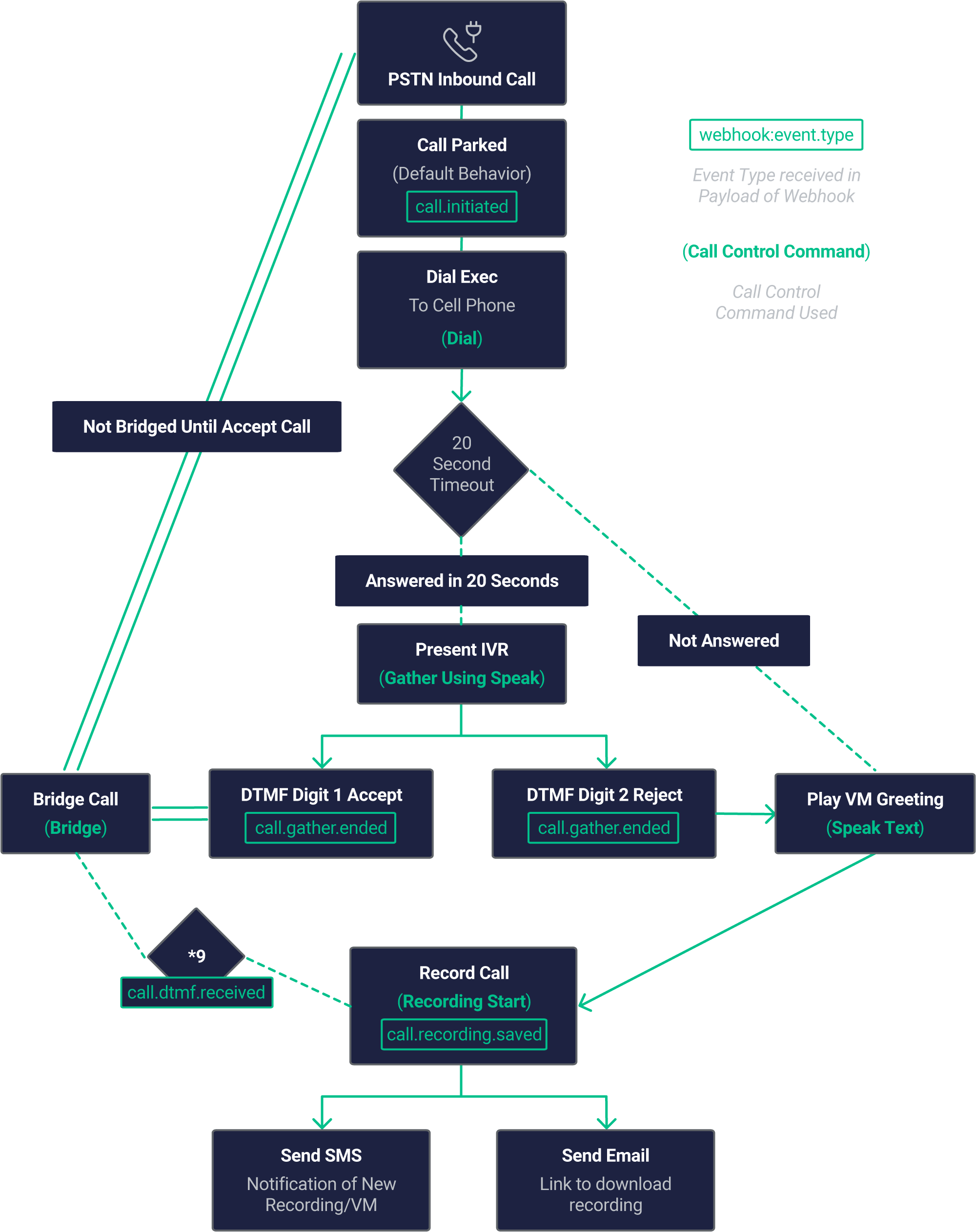
With all the basic Telnyx Voice API Commands set, we are ready to consume them and put them in the order that will create the IVR. For this tutorial we want to keep it simple with a flow that corresponds to the following IVR Logic:

1. Allow the incoming call to be parked.
2. Execute dial function to the user's PSTN number.
3. Present an IVR allowing them to Accept or Reject the call and execute a 20 second timeout to hangup for no answer.
4. When the user answers, they will be met with an IVR Greeting:

* Press 1 to Accept the Call - The Parked Call and this Dialed call will now be Bridged. The Timeout to Hangup the Dial call to user will be cleared.
* Press 2 to Reject the call - The Dialed Call will hang up. The Parked call will enter the Voicemail Functionality via Speak and Recording Start
* At any time during the caller, the user can press \*9 to initiate on demand call recording.

5. An SMS notification will be sent to the user to notify them of a call recording or voicemail message. (Optionally) - the nodemailer function will send an email to the user with a link to download and listen to the recording.

![IVR Demo Diagram](https://images.ctfassets.net/4b49ta6b3nwj/5B6v9Bygi4iVGH8N42C1Hw/a663b0e9619b95e3b4d1df4c8749e611/Diagram_IVR_Demo_DarkMode.png)

To exemplify this process we created a simple API call that will be exposed as the webhook in Mission Portal. For that we would be using `express`:

```bash theme={null}
$ npm install request --save
```

<Callout type="info">
  After pasting the above content, Kindly check and remove any new line added
</Callout>

With `express` we can create an API wrapper that uses `HTTP GET` to call our Request Token method:

```javascript theme={null}
rest.post(`/${g_appName}/followme`, async (req, res) => {
  // APP CODE GOES HERE  
})
```

<Callout type="info">
  After pasting the above content, Kindly check and remove any new line added
</Callout>

This would expose a webhook like the following:

```
http://MY_DOMAIN_URL/telnyx-findme/followme
```

You probably noticed that `g_appName` in the previous point. That is part of a set of global variables we are defining with a certain set of info we know we are going to use in this app: TTS parameters, like voice and language to be used and IVR redirecting contact points.

You can set these at the beginning of your code:

```javascript theme={null}
// Application:
// Application:
const g_appName = "telnyx-findme";

// TTS Options
const g_ivr_voice = "female";
const g_ivr_language = "en-GB";
```

<Callout type="info">
  After pasting the above content, Kindly check and remove any new line added
</Callout>

With that set, we can fill in that space that we named as `APP CODE GOES HERE`. So as you expose the URL created as Webhook in Mission Control associated with your number, you’ll start receiving all call events for that call.

So the first thing to be done is to identify the kind of event you just received and extract the `Call Control Id` and `Client State` (if defined previously):

```javascript theme={null}
if (req && req.body && req.body.event_type){
   	if (req && req.body && req.body.data.event_type) {
		const l_hook_event_type = req.body.data.event_type;
		const l_call_control_id = req.body.data.payload.call_control_id;
		const l_client_state_64 = req.body.data.payload.client_state;
} else{res.end('0');}
```

<Callout type="info">
  After pasting the above content, Kindly check and remove any new line added
</Callout>

Once you identify the `Event Type` and `client_state` received, it’s just a matter of having your application reacting to that. Is the way you react to that Event that helps you creating the IVR logic. What you would be doing is to execute Telnyx Call Control Command as a reaction to those Events.

#### `Webhook call initiated >> Command answer call`

If our `event_type` is call.initiated and the direction is incoming we are going to execute the command to Dial the User. After the Dial is executed and we get a new webhook for the dialed call which the direction will be "outgoing," we will specify our `timeout_secs` parameter to 30 seconds so that the user's mobile voicemail doesn't pick up and we leave an empty message there

```javascript theme={null}
if (l_hook_event_type == "call.initiated") {
		// Inbound Call
		if (req.body.data.payload.direction == "incoming") {
			// Format the update to client-state so we can execute call flow and the call control id of the call we may eventually bridge follows in client_state
			let l_client_state = {
				clientState: "stage-bridge",
				bridgeId: l_call_control_id,
			};
			// Dial to our FindMe/FollowMe Destination, forwarding the original CallerID so we can better determine disposition of choice
			const { data: call } = await telnyx.calls.create({
				connection_id: g_connection_id,
				to: g_forwarding_did,
				from: req.body.data.payload.from,
				client_state: Buffer.from(
					JSON.stringify(l_client_state)
				).toString("base64"),
				timeout_secs: "30",
			});
			console.log(
				`[%s] LOG - EXEC DIAL -  [%s] ${get_timestamp()} | ${
					req.body.data.payload.result
				}`
			);
			res.end();
```

<Callout type="info">
  After pasting the above content, Kindly check and remove any new line added
</Callout>

#### `Webhook dial answered >> Command gather using speak`

Once your app is notified by Telnyx that the call was established you want to initiate your IVR. You do that using the Telnyx Voice API Command `Gather Using Speak`, with the IVR message.

As part of the `Gather Using Speak` Command we indicate that valid digits for the `DTMF` collection are 1 and 2, and that only 1 digit input would be valid. Since we only want to execute this when the call is answered by the user via the dial, we set `client_state` to "stage-bridge" on the Dial seen above.

```javascript theme={null}
 else if (l_hook_event_type == "call.answered") {
		if (l_client_state_o.clientState == "stage-bridge") {
			let l_client_state = {
				clientState: "stage-dial",
				bridgeId: l_client_state_o.bridgeId,
			};
			// Gather Using Speak - Present Menu to Forwading destination, 1 to Accept and Bride Call, 2 to Reject and Send to System Voicemail
			const gather = new telnyx.Call({
				call_control_id: l_call_control_id,
			});
			gather.gather_using_speak({
				payload: "Call Forwarded press 1 to accept or 2 to reject",
				voice: g_ivr_voice,
				language: g_ivr_language,
				valid_digits: "123",
				client_state: Buffer.from(
					JSON.stringify(l_client_state)
				).toString("base64"),
			});
			console.log(`[%s] LOG - EXEC GATHER -  [%s] ${get_timestamp()}`);
			res.end();
}
```

<Callout type="info">
  After pasting the above content, Kindly check and remove any new line added
</Callout>

*Important Note: For consistency, Telnyx Voice API requires every single Webhook to be replied by the Webhook end-point, otherwise will keep trying. For that reason we have to be ready to consume every Webhook we expect to receive and reply with `200 OK`.*

#### `Webhook call bridged >> Do nothing`

Your app will be informed that the call was bridged should the user choose to accept the call. For the APP we are doing nothing with that info, but we will need to reply to that command.

```javascript theme={null}
else if (l_hook_event_type == call_bridged){
 res.end();
}
```

<Callout type="info">
  After pasting the above content, Kindly check and remove any new line added
</Callout>

#### `Webhook listen for DTMF to execute call recording on demand`

We need to be listening for the specified digit in order to execute the recording on demand feature, specifically \*\*\*. Now this example is very rudimentary and is just for proof of concept. In production, the dtmf should only be received from the user's call leg. Additionally here, we will empty the array once the condition is met and we execute the `Recording Start` Command. We are also re-using this to record are voicemail message.

```javascript theme={null}
else if (
		req.body.data.payload.digit === "*" ||
		l_hook_event_type == "call.speak.ended"
	) {
		let l_client_state = {
			clientState: "stage-voicemail-greeting",
			bridgeId: null,
		};
		const record_call = new telnyx.Call({
			call_control_id: l_call_control_id,
		});
		record_call.record_start({
			format: "mp3",
			channels: "single",
			play_beep: true,
			client_state: Buffer.from(JSON.stringify(l_client_state)).toString(
				"base64"
			),
		});
		console.log(
			`[%s] LOG - EXEC RECORD INITIATE -  [%s] ${get_timestamp()}`
		);
		res.end();
	}
```

<Callout type="info">
  After pasting the above content, Kindly check and remove any new line added
</Callout>

*Important Note: With DTMF, you will recieve both dtmf in the payload of webhooks for both `call.gather.ended` and `call.dtmf.received`. The main difference is that in the gather webhooks dtmf will be sent as value to key "digits" and in dtmf.received the key will be "digit."*

#### `Webhook gather ended >> Find me IVR logic`

It’s when you receive the Webhook informing your application that Voice API `Gather Ended` (DTMF input) that the IVR magic happens:

We're doing a number of things here.

1. If the user presses 1, we are first going to clear the timeout for this Dialed call so it does not hangup automatically. Second, we are going to issue "bridge" to connect the caller and the user.
2. If the user presses 2, we are going to do execute two commands. We will speak the voicemail greeting to the caller, and issue hangup to the users mobile.

In order to bridge the calls, we need both the call\_control\_id for this Dialed Call and the call\_control\_id PSTN Caller. This is the call\_control\_bridge function you see we are passing.

* `l_call_control_id` The call control id of the latest webhook we just recieved the DTMF on and has a `client_state` of "stage-dial"
* `l_bridge_id` The PSTN caller's call control id, we set that variable to our client state object in `l_client_state.bridgeId` earlier when we first received the webhook on the incoming call.

We've been receiving webhooks for both the original PSTN caller and for the new call we placed via Dial to the user. Both have their own unique call\_control\_ids, which we will use to bridge both calls together. Here you will witness the importance of `client_state` as we're only executing the bridge on the dial webhook that we set `client_state` of "stage-dial".

#### `Webhook gather ended >> Process DTMF for IVR`

```javascript theme={null}
 else if (l_hook_event_type == "call.gather.ended") {
		// Receive DTMF Number
		const l_dtmf_number = req.body.data.payload.digits;

		console.log(
			`[%s] DEBUG - RECEIVED DTMF [%s]${get_timestamp()} | ${l_dtmf_number}`
		);
		res.end();

		// Check Users Selection for forwarded call
		if (!l_client_state_64) {
			res.end();
			// Do nothing... will have state
		} else {
			// Selected Answer Call >> Bridge Calls
			if (l_client_state_o.clientState == "stage-dial" && l_dtmf_number) {
				// Bridge Call
				if (l_dtmf_number == "1") {
					const bridge_call = new telnyx.Call({
						call_control_id: l_call_control_id,
					});
					// Bridge this call to the initial call control id which triggered our call flow which we stored in client state on the initial Dial
					bridge_call.bridge({
						call_control_id: l_client_state_o.bridgeId,
					});
					res.end();
					console.log(
						`[%s] LOG - EXEC BRIDGE CALLS -  [%s] ${get_timestamp()}`
					);
					// Call rejected >> Answer Bridge Call, You must answer the parked call before you can issue speak or play audio
				} else if (l_dtmf_number == "2") {
					// Set Call State so we can initiate the voicemail call flow
					let l_client_state = {
						clientState: "stage-voicemail-greeting",
						bridgeId: null,
					};
					const answer_bridge_call = new telnyx.Call({
						call_control_id: l_client_state_o.bridgeId,
					});

					answer_bridge_call.answer({
						client_state: Buffer.from(
							JSON.stringify(l_client_state)
						).toString("base64"),
					});

					// Hangup This call now that user has responded to reject
					const hangup_call = new telnyx.Call({
						call_control_id: l_call_control_id,
					});
					hangup_call.hangup();
					console.log(
						`[%s] LOG - EXEC HANGUP FINDME AND SEND TO VM -  [%s] ${get_timestamp()}`
					);
				}
				res.end();
			}
		}

		res.end();
		// Webhook Speak Ended or * received >> Record VoiceMail / Call
	}
```

<Callout type="info">
  After pasting the above content, Kindly check and remove any new line added
</Callout>

#### `Webhook call recording saved >> Send text message of recording`

We are receiving a webhook of `call.recording.saved` after BOTH a voicemail has been recorded and if a record call on demand has been executed. Now in this web hook we will recieve a link to an mp3 recording of either the voicemail or recorded call. We are going to send an sms notification to the User via `sms_send_notification`. Optionally, we are using the nodemailer sdk to send an email to the user with the link so they can listen to the message or call.

```javascript theme={null}
else if (l_hook_event_type == "call.recording.saved") {
		//Send Text Message Alert for call recording - Ber sure to enable Link shortener in Telnyx Messaging Profile

		telnyx.messages
			.create({
				from: g_call_control_did, // Your Telnyx number
				to: g_forwarding_did,
				text: `You have a new Recording ${req.body.data.payload.recording_urls.mp3}`,
			})
			.then(function(response) {
				const message = response.data; // asynchronously handled
			});
		console.log(`[%s] LOG - EXEC SEND SMS -  [%s] ${get_timestamp()}`);

		res.end();
	}
```

<Callout type="info">
  After pasting the above content, Kindly check and remove any new line added
</Callout>

### Lightning-up the application

Finally the last piece of the puzzle is having your application listening for Telnyx Webhooks:

```javascript theme={null}
const PORT = 8081;
rest.listen(PORT, () => {
	console.log(
		`SERVER ${get_timestamp()} -  app listening at http://localhost:${PORT}/${g_appName}`
	);
});

})
```

<Callout type="info">
  After pasting the above content, Kindly check and remove any new line added
</Callout>

And start the application by executing the following command:

```javascript theme={null}
$ npm run dev
```

<Callout type="info">
  After pasting the above content, Kindly check and remove any new line added
</Callout>

## Ruby

⏱ **30 minutes build time**

### Introduction to the call control framework

The [Voice API framework](/api-reference/call-commands/dial), previously called Call Control, is a set of APIs that allow complete control of a call flow from the moment a call begins to the moment it is completed. In between, you will receive a number of [webhooks](/docs/voice/programmable-voice/receiving-webhooks) for each step of the call, allowing you to act on these events and send commands using the Telnyx Library. A subset of the operations available in the Call Control API is the [Call Control Conference](/api-reference/conference-commands/conference-recording-start) API. This allows the user (you) to create and manage a conference programmatically upon receiving an incoming call, or when initiating an outgoing call.

The <a href="https://github.com/team-telnyx/telnyx-ruby">Telnyx Ruby Library</a> is a convenient wrapper around the Telnyx REST API. It allows you to access and control call flows using an intuitive object-oriented library. This tutorial will walk you through creating a simple Sinatra server that allows you to create an IVR demo application.

### Setup your development environment

Before beginning, please ensure that you have the Telnyx, Dotenv, and Sinatra gems installed.

```bash theme={null}
gem install telnyx sinatra dotenv
```

<Callout type="info">
  After pasting the above content, Kindly check and remove any new line added
</Callout>

Alternatively, create a Gemfile for your project

```ruby theme={null}
source 'https://rubygems.org'

gem 'sinatra'
gem 'telnyx'
gem 'dotenv'
```

<Callout type="info">
  After pasting the above content, Kindly check and remove any new line added
</Callout>

#### Setting environment variables

The following environmental variables need to be set

<table class="table">
  <tbody>
    <tr>
      <td>Variable</td>
      <td>Description</td>
    </tr>

    <tr>
      <td><code>TELNYX\_API\_KEY</code></td>
      <td>Your <a href="https://portal.telnyx.com/#/app/api-keys?utm_source=referral&utm_medium=github_referral&utm_campaign=cross-site-link">Telnyx API Key</a></td>
    </tr>

    <tr>
      <td><code>TELNYX\_PUBLIC\_KEY</code></td>
      <td>Your <a href="https://portal.telnyx.com/#/app/account/public-key?utm_source=referral&utm_medium=github_referral&utm_campaign=cross-site-link">Telnyx Public Key</a></td>
    </tr>

    <tr>
      <td><code>TELNYX\_APP\_PORT</code></td>
      <td><strong>Defaults to <code>8000</code></strong> The port the app will be served</td>
    </tr>
  </tbody>
</table>

#### .env file

This app uses the excellent <a href="https://github.com/bkeepers/dotenv">dotenv</a> package to manage environment variables.

Make a copy of the file below, add your credentials, and save as `.env` in the root directory.

```
TELNYX_API_KEY=
TELNYX_PUBLIC_KEY=
TENYX_APP_PORT=8000
```

<Callout type="info">
  After pasting the above content, Kindly check and remove any new line added
</Callout>

#### Portal setup

This tutorial assumes you've already [set up your developer account and environment](/development) and you know how to [send commands](/docs/voice/programmable-voice/sending-commands) and [receive webhooks](/docs/voice/programmable-voice/receiving-webhooks) using Voice API.

The <a href="https://portal.telnyx.com/#/app/call-control/applications">Voice API Application</a> needs to be setup to send API V2 webhooks:

* Make sure the *Webhook API Version* is **API v2**.
* Fill in the *Webhook URL* with the address the server will be running on. Alternatively, you can use a service like <a href="https://ngrok.com/">Ngrok</a>
  to temporarily forward a local port to the internet to a random address and use that. We'll talk about this in more detail later.

Finally, you need to create an <a href="https://portal.telnyx.com/#/app/auth/v2">API Key</a> - make sure you save the key somewhere safe.

Now create a file such as `ivr_demo_server.rb`, then write the following to setup the Telnyx library.

```ruby theme={null}
# frozen_string_literal: true

require 'sinatra'
require 'telnyx'
require 'dotenv/load'

# Setup telnyx api key.
Telnyx.api_key = ENV.fetch('TELNYX_API_KEY')
```

<Callout type="info">
  After pasting the above content, Kindly check and remove any new line added
</Callout>

### Receiving webhooks & answering a call

Now that you have setup your auth token and `call_control_id`, you can begin to use the API Library to answer a call and receive input from <a href="https://support.telnyx.com/en/articles/1130710-what-is-dtmf">DTMF</a>. First, you will need to setup a Sinatra endpoint to receive webhooks for call and DTMF events. There are a number of webhooks that you should anticipate receiving during the lifecycle of each call. This will allow you to take action in response to any number of events triggered during a call. In this example, you will use the `call.initiated` and `call.answered` events to answer the incoming call and then present IVR options to the user.  You'll use the `call.gather.ended` event to parse the digits pressed during the IVR.

```ruby theme={null}
# ...
set :port, ENV.fetch('TELNYX_APP_PORT')
post '/webhook' do
  # Parse the request body.
  request.body.rewind
  body = request.body.read # Save the body for verification later
  data = JSON.parse(body)['data']

  # Handle events
  if data['record_type'] == 'event'
    call = Telnyx::Call.new id: data['payload']['call_control_id'],
                            call_leg_id: data['payload']['call_leg_id']
    case data['event_type']
    when 'call.initiated'
      # Answer the call, this will cause the api to send another webhook event
      # of the type call.answered, which we will handle below.
      call.answer
      puts('Answered Call')

    when 'call.answered'
      # Start to gather information, using the prompt "Press a digit"
      call.gather_using_speak(voice: 'female',
                              language: 'en-US',
                              payload: 'Press some digits! The only valid options are 1 2 3',
                              valid_digits: '123',
                              invalid_payload: 'Invalid Entry Please try again')
      puts('Gather sent')

    when 'call.gather.ended'
      # Only care about the digits captured during the gather request
      if data['payload']['status'] != 'call_hangup'
        # Ensure that the reason for ending was NOT a hangup (can't speak on an ended call)
        call.speak(voice: 'female',
                   language: 'en-US',
                   payload: "You pressed: #{data['payload']['digits']}, You can now hangup")
        puts('DTMF spoke')
      end
    end
  end
end
```

<Callout type="info">
  After pasting the above content, Kindly check and remove any new line added
</Callout>

Pat youself on the back - that's a lot of code to go through! Now let's break it down even further and explain what it does. First, create an array for keeping track of the ongoing calls so that we can differentiate. Then, tell Sinatra to listen on the port defined in the `.env` file and create an endpoint at `/webhook`, which can be anything you choose as the API doesn't care; here we just call it webhook.

```ruby theme={null}
set :port, ENV.fetch('TELNYX_APP_PORT')

post "/webhook" do
# ...
end
```

<Callout type="info">
  After pasting the above content, Kindly check and remove any new line added
</Callout>

Next, parse the data from the API server, check to see if it is a webhook event, and act on it if it is. Then, you will define what actions to take on different types of events.  The webhook endpoint is only tuned to accept call events. You can create a `call` object from the `call_control_id` nested in the `webhook.data.payload` JSON. This will allow you to send commands to the active call.

```ruby theme={null}
post '/webhook' do
  # Parse the request body.
  request.body.rewind
  body = request.body.read # Save the body for verification later
  data = JSON.parse(body)['data']
  # Handle events
  if data['record_type'] == 'event'
    call = Telnyx::Call.new id: data['payload']['call_control_id'],
                            call_leg_id: data['payload']['call_leg_id']
    case data['event_type']
    end
  end
end
```

<Callout type="info">
  After pasting the above content, Kindly check and remove any new line added
</Callout>

Here is where you will respond to a new call being initiated, which can be from either an inbound or outbound call. Create a new `Telnyx::Call` object and store it in the active call list, then call `call.answer` to answer it if it's an inbound call.

```ruby theme={null}
when 'call.initiated'
  # Answer the call, this will cause the api to send another webhook event
  # of the type call.answered, which we will handle below.
  call.answer
  puts('Answered Call')
```

<Callout type="info">
  After pasting the above content, Kindly check and remove any new line added
</Callout>

On the `call.answered` event, we can call the `gather_using_speak` command to speak audio and gather DTMF information from the user input.

Take note that the `valid_digits` restricts the input to the caller to only the digits specified. The `invalid_payload` will be played back to the caller before the `payload` is repeated back if any invalid digits are pressed when the gather completes.

```ruby theme={null}
when 'call.answered'
  # Start to gather information, using the prompt "Press a digit"
  call.gather_using_speak(voice: 'female',
                          language: 'en-US',
                          payload: 'Press some digits! The only valid options are 1 2 3',
                          valid_digits: '123',
                          invalid_payload: 'Invalid Entry Please try again')
  puts('Gather sent')
```

<Callout type="info">
  After pasting the above content, Kindly check and remove any new line added
</Callout>

Now, once we have our setup complete, when the gather is complete due to one of the statuses: ( `valid`, `invalid`, `call_hangup`, `cancelled`, `cancelled_amd`), the `call.gather.ended` event is sent to the `webhook` endpoint. From there, we can extract the `digits` field from the `payload` and play it back to the user using `speak`.

Take note that the `call_hangup` status indicates the caller hungup before the gather could complete. For that case, we're done as `speak` does not work on an ended call.

```ruby theme={null}
when 'call.gather.ended'
  # Only care about the digits captured during the gather request
  if data['payload']['status'] != 'call_hangup'
    # Ensure that the reason for ending was NOT a hangup (can't speak on an ended call)
    call.speak(voice: 'female',
               language: 'en-US',
               payload: "You pressed: #{data['payload']['digits']}, You can now hangup")
    puts('DTMF spoke')
  end
end
```

<Callout type="info">
  After pasting the above content, Kindly check and remove any new line added
</Callout>

### Authentication for your calls

Now you have a working conference application! How secure is it though? Could a third party simply craft fake webhooks to manipulate the call flow logic of your application? Telnyx has you covered with a powerful signature verification system!

Make the following changes:

```ruby theme={null}
# ...
post '/webhook' do
  # Parse the request body.
  request.body.rewind
  body = request.body.read # Save the body for verification later
  data = JSON.parse(body)['data']
  begin
    Telnyx::Webhook::Signature.verify(body,
                                      request.env['HTTP_TELNYX_SIGNATURE_ED25519'],
                                      request.env['HTTP_TELNYX_TIMESTAMP'])
  rescue Exception => e
    puts e
    halt 400, 'Webhook signature not valid'
  end
# ...
```

<Callout type="info">
  After pasting the above content, Kindly check and remove any new line added
</Callout>

Your public key is read from the Environment variables defined in your `.env` file. Look up your public key from the Telnyx Portal <a href="https://portal.telnyx.com/#/app/account/public-key">here</a>. `Telnyx::Webhook::Signature.verify` will do the work of verifying the authenticity of the message, and raise `SignatureVerificationError` if the signature does not match the payload.

### Final `ivr_demo_server.rb`

All together, your `ivr_demo_server.rb` file should resemble something like:

```ruby theme={null}
# frozen_string_literal: true

require 'sinatra'
require 'telnyx'
require 'dotenv/load'

# Setup telnyx api key.
Telnyx.api_key = ENV.fetch('TELNYX_API_KEY')

set :port, ENV.fetch('TELNYX_APP_PORT')
post '/webhook' do
  # Parse the request body.
  request.body.rewind
  body = request.body.read # Save the body for verification later
  data = JSON.parse(body)['data']
  begin
    Telnyx::Webhook::Signature.verify(body,
                                      request.env['HTTP_TELNYX_SIGNATURE_ED25519'],
                                      request.env['HTTP_TELNYX_TIMESTAMP'])
  rescue Exception => e
    puts e
    halt 400, 'Webhook signature not valid'
  end
  # Handle events
  if data['record_type'] == 'event'
    call = Telnyx::Call.new id: data['payload']['call_control_id'],
                            call_leg_id: data['payload']['call_leg_id']
    case data['event_type']
    when 'call.initiated'
      # Answer the call, this will cause the api to send another webhook event
      # of the type call.answered, which we will handle below.
      call.answer
      puts('Answered Call')

    when 'call.answered'
      # Start to gather information, using the prompt "Press a digit"
      call.gather_using_speak(voice: 'female',
                              language: 'en-US',
                              payload: 'Press some digits! The only valid options are 1 2 3',
                              valid_digits: '123',
                              invalid_payload: 'Invalid Entry Please try again')
      puts('Gather sent')

    when 'call.gather.ended'
      # Only care about the digits captured during the gather request
      if data['payload']['status'] != 'call_hangup'
        # Ensure that the reason for ending was NOT a hangup (can't speak on an ended call)
        call.speak(voice: 'female',
                   language: 'en-US',
                   payload: "You pressed: #{data['payload']['digits']}, You can now hangup")
        puts('DTMF spoke')
      end
    end
  end
end
```

<Callout type="info">
  After pasting the above content, Kindly check and remove any new line added
</Callout>

### Voice API Usage

If you used a Gemfile, start the conference server with `bundle exec ruby ivr_demo_server.rb`, if you are using globally installed gems use `ruby ivr_demo_server.rb`.

When you are able to run the server locally, the final step involves making your application accessible from the internet. So far, we've set up a local web server. This is typically not accessible from the public internet, making testing inbound requests to web applications difficult.

The best workaround is a tunneling service. They come with client software that runs on your computer and opens an outgoing permanent connection to a publicly available server in a data center. Then, they assign a public URL (typically on a random or custom subdomain) on that server to your account. The public server acts as a proxy that accepts incoming connections to your URL, forwards (tunnels) them through the already established connection and sends them to the local web server as if they originated from the same machine. The most popular tunneling tool is `ngrok`. Check out the [ngrok setup](/development/development-tools/ngrok-setup/index#ngrok) walkthrough to set it up on your computer and start receiving webhooks from inbound messages to your newly created application.

Once you've set up `ngrok` or another tunneling service you can add the public proxy URL to your Connection in the MIssion Control Portal. To do this, click  the edit symbol \[✎] next to your Connection. In the "Webhook URL" field, paste the forwarding address from ngrok into the Webhook URL field. Add `/webhook` to the end of the URL to direct the request to the webhook endpoint in your Sinatra server.

#### Callback URLs for Telnyx applications

<table class="table">
  <tbody>
    <tr>
      <td>Callback Type</td>
      <td>URL</td>
    </tr>

    <tr>
      <td>Inbound Calls Callback</td>
      <td>`{ngrok-url}/webhook`</td>
    </tr>
  </tbody>
</table>

For now you'll leave “Failover URL” blank, but if you'd like to have Telnyx resend the webhook in the case where sending to the Webhook URL fails, you can specify an alternate address in this field.

### Complete running Voice API IVR application

You have now created a simple IVR application! Using other Call Commands, you can perform actions based on user input collected during a gather. For more information on what call commands you can use, check out the [Call Command Documentation](/api-reference/call-commands/dial "Call Command Documentation")s