> ## Documentation Index
> Fetch the complete documentation index at: https://developers.telnyx.com/llms.txt
> Use this file to discover all available pages before exploring further.
# Fine Tuning
> Fine-tune open-source models on the Telnyx Inference platform. Upload a training dataset, run a job, and deploy your customized model for inference.
In this tutorial, you'll learn how to:
* Upload documents to [Telnyx Storage](https://telnyx.com/products/cloud-storage)
* Customize a language model for your unique needs, using those documents
* Chat with this fine-tuned language model in the portal or via API
Like most fine-tuning providers, Telnyx supports the standard `.jsonl` training file as input.
Unlike most fine-tuning providers, Telnyx will also use AI to generate a training file from your raw documents automatically. This is the workflow covered in this tutorial.
## Upload your documents
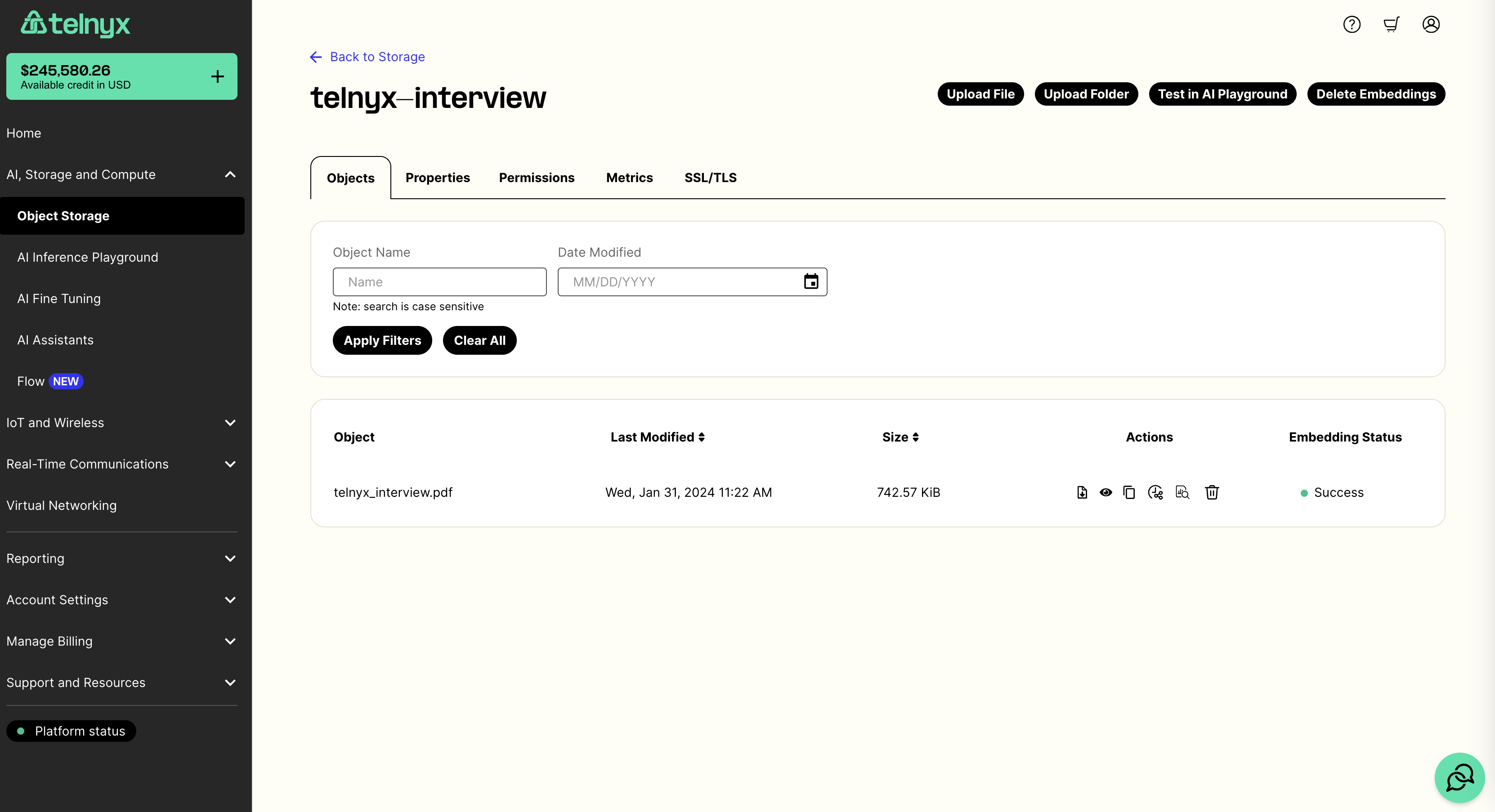
You can upload objects to Telnyx's S3-Compatible storage API using our [quickstart](https://developers.telnyx.com/docs/cloud-storage/quick-start) or with our [drag-and-drop interface in the portal](https://portal.telnyx.com/#/storage/buckets).
 ## Fine-tune a language model on your documents
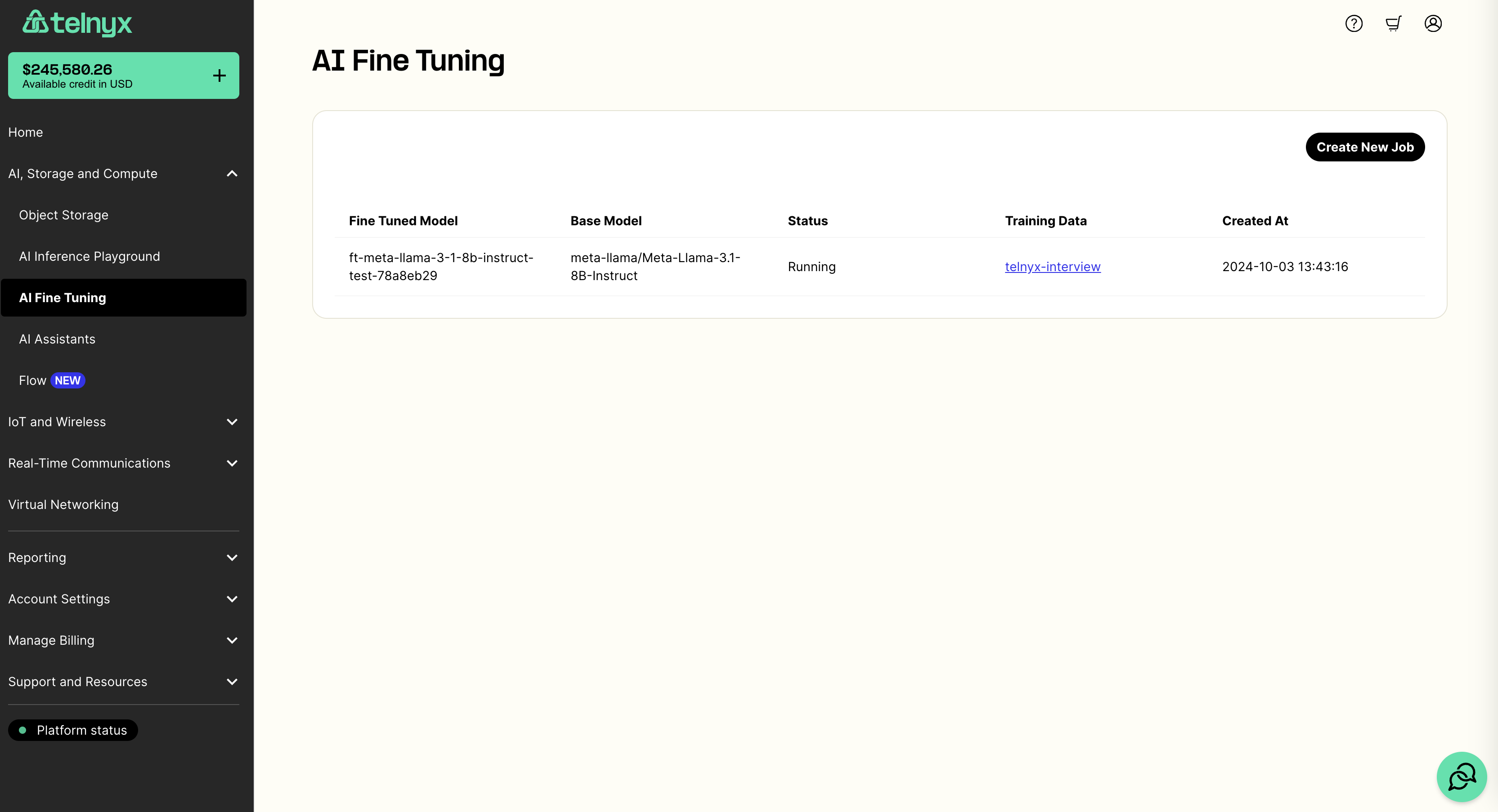
Once you've uploaded your documents, you can [fine tune on them via API](https://developers.telnyx.com/api-reference/fine-tuning/create-a-fine-tuning-job#create-a-fine-tuning-job) or by navigating to the [fine-tuning tab in the portal](https://portal.telnyx.com/#/ai/fine-tuning). Once there you can select a base model to train and the bucket with your training documents.
## Fine-tune a language model on your documents
Once you've uploaded your documents, you can [fine tune on them via API](https://developers.telnyx.com/api-reference/fine-tuning/create-a-fine-tuning-job#create-a-fine-tuning-job) or by navigating to the [fine-tuning tab in the portal](https://portal.telnyx.com/#/ai/fine-tuning). Once there you can select a base model to train and the bucket with your training documents.
 Behind the scenes, your documents will be automatically converted with AI into a `.jsonl` training file. Immediately after, we will begin fine-tuning your model using this training file.
This whole process may take several minutes to complete. You can monitor the status of your fine-tuning job in the fine-tuning tab.
Behind the scenes, your documents will be automatically converted with AI into a `.jsonl` training file. Immediately after, we will begin fine-tuning your model using this training file.
This whole process may take several minutes to complete. You can monitor the status of your fine-tuning job in the fine-tuning tab.
 ## Chat with your new model
Once your model is fine-tuned, you can try it out in the [AI Playground in the portal](https://portal.telnyx.com/#/ai/playground) by selecting your model in the dropdown.
You can also use your fine-tuned model via our [chat completions API](https://developers.telnyx.com/api-reference/openai-chat/create-a-chat-completion-openai-compatible). Here is a Python example.
Make sure you have set the `TELNYX_API_KEY` environment variable. Also, update the `question` and `model` variables in the sample code.
```python theme={null}
import os
from openai import OpenAI
client = OpenAI(
api_key=os.getenv("TELNYX_API_KEY"),
base_url="https://api.telnyx.com/v2/ai/openai",
)
question = ""
model = ""
chat_completion = client.chat.completions.create(
messages=[
{
"role": "user",
"content": question
}
],
model=model,
stream=True
)
for chunk in chat_completion:
if chunk.choices[0].delta.content:
print(chunk.choices[0].delta.content, end="", flush=True)
```
## Chat with your new model
Once your model is fine-tuned, you can try it out in the [AI Playground in the portal](https://portal.telnyx.com/#/ai/playground) by selecting your model in the dropdown.
You can also use your fine-tuned model via our [chat completions API](https://developers.telnyx.com/api-reference/openai-chat/create-a-chat-completion-openai-compatible). Here is a Python example.
Make sure you have set the `TELNYX_API_KEY` environment variable. Also, update the `question` and `model` variables in the sample code.
```python theme={null}
import os
from openai import OpenAI
client = OpenAI(
api_key=os.getenv("TELNYX_API_KEY"),
base_url="https://api.telnyx.com/v2/ai/openai",
)
question = ""
model = ""
chat_completion = client.chat.completions.create(
messages=[
{
"role": "user",
"content": question
}
],
model=model,
stream=True
)
for chunk in chat_completion:
if chunk.choices[0].delta.content:
print(chunk.choices[0].delta.content, end="", flush=True)
```