> ## Documentation Index
> Fetch the complete documentation index at: https://developers.telnyx.com/llms.txt
> Use this file to discover all available pages before exploring further.
# Insight Groups
> Organize AI Insights into reusable groups and configure webhook delivery for automated insights distribution.
Insight Groups allow you to organize related insights into collections that can be assigned to AI Assistants and configured with webhook delivery. Groups provide a modular, reusable approach to conversation analysis.
## Overview
An **Insight Group** is a named collection of insights with optional webhook configuration. Key features:
* **Reusable** - Assign the same group to multiple assistants.
* **Modular** - Mix and match insights across different groups.
* **Flexible Delivery** - Configure unique webhook URLs per group.
* **Organized** - Group insights by use case, department, or business function.
## Accessing insight groups
1. Log in to the [Mission Control Portal](https://portal.telnyx.com).
2. Navigate to **AI, Storage and Compute** > **AI Insights**.
3. Click the **AI Insight Groups** tab.
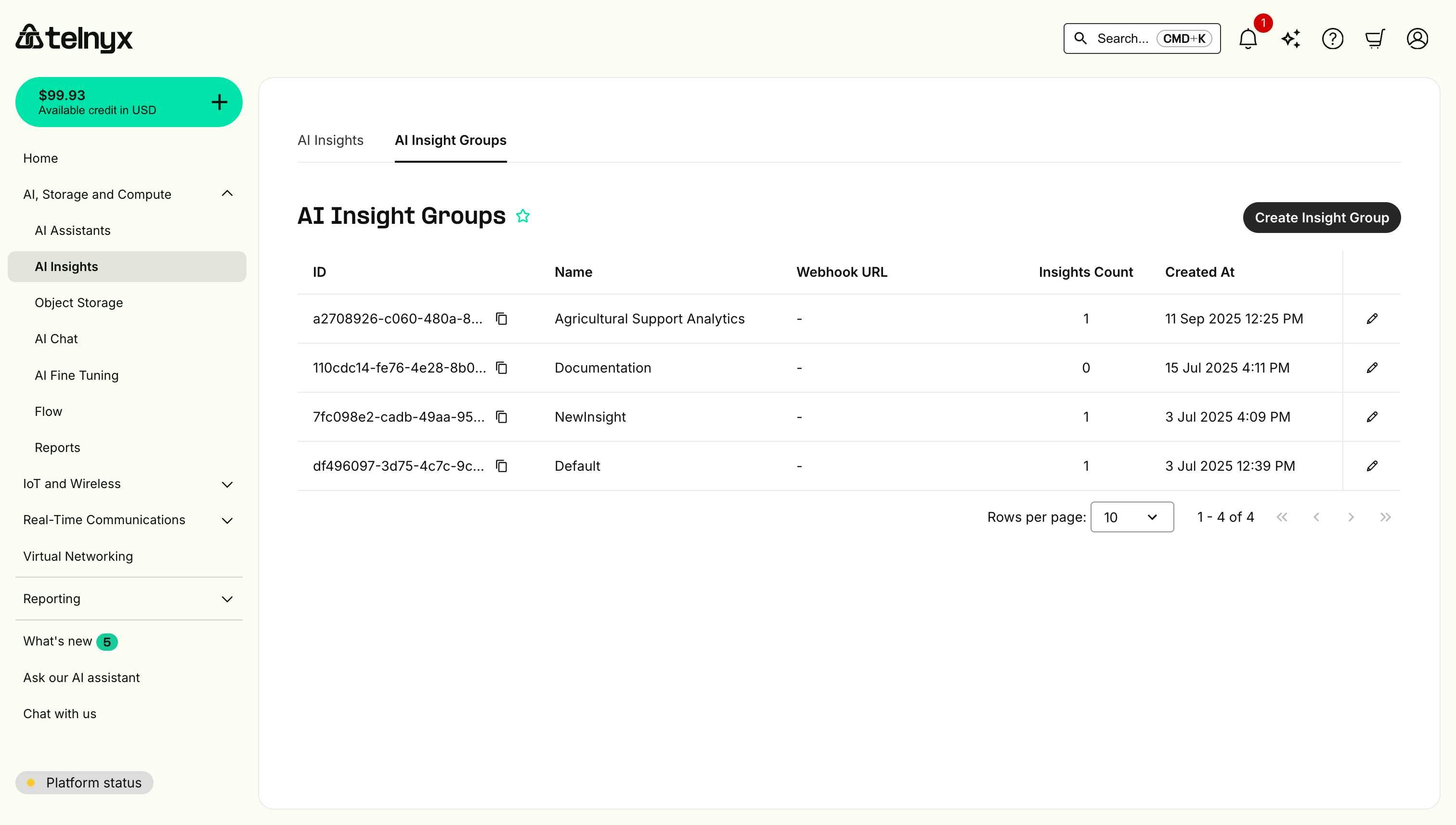 The page displays:
* **ID** - Unique identifier for the group (copyable).
* **Name** - Group name.
* **Webhook URL** - Configured webhook endpoint (or "-" if none).
* **Insights Count** - Number of insights in the group.
* **Created At** - When the group was created.
## Creating an insight group
### Step 1: Open the create dialog
Click the **Create Insight Group** button in the top-right corner.
### Step 2: Configure the group
The page displays:
* **ID** - Unique identifier for the group (copyable).
* **Name** - Group name.
* **Webhook URL** - Configured webhook endpoint (or "-" if none).
* **Insights Count** - Number of insights in the group.
* **Created At** - When the group was created.
## Creating an insight group
### Step 1: Open the create dialog
Click the **Create Insight Group** button in the top-right corner.
### Step 2: Configure the group
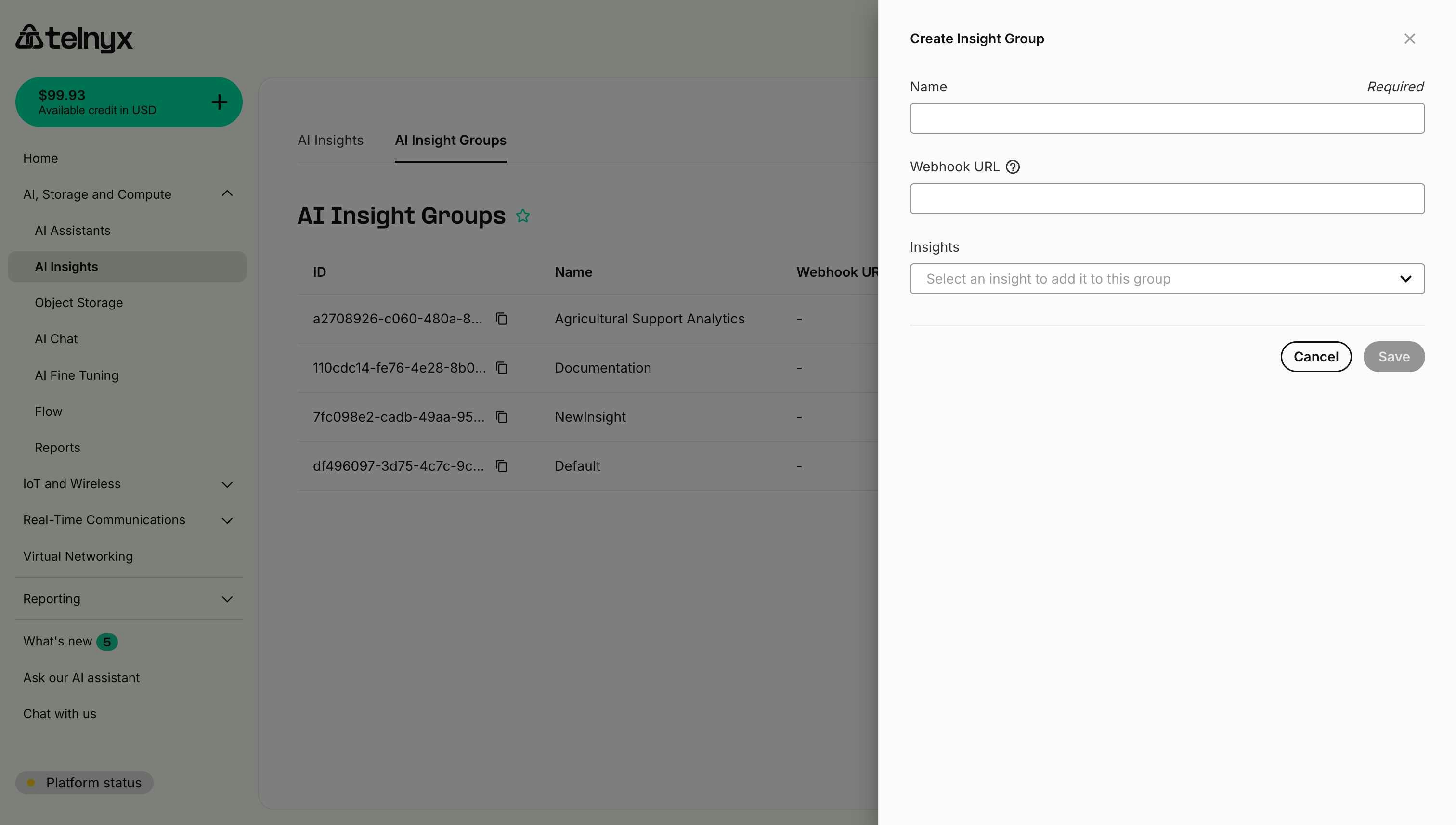 Fill in the following fields:
#### Name (required)
A descriptive name that indicates the group's purpose.
**Examples:**
* "Customer Service Analytics".
* "Sales Qualification Metrics".
* "Healthcare Compliance Checks".
* "E-commerce Customer Insights".
* "Support Ticket Classification".
**Best practices:**
* Use clear, business-oriented names.
* Include the use case or department.
* Avoid generic names like "Group 1" or "Test Group".
#### Webhook URL (optional)
The HTTPS endpoint where insight results will be sent after each conversation.
**Format:** `https://your-domain.com/webhooks/insights`
**When to use:**
* You want real-time insight delivery to your application.
* You're building dashboards or analytics systems.
* You need to trigger actions based on insights.
* You're integrating with external systems.
**When to skip:**
* You only need to view insights in the Portal.
* You're using the API to fetch insights on-demand.
* You're still testing and refining your insights.
#### Insights (multi-select)
Select which insights to include in this group:
1. Click the **Select an insight** dropdown.
2. Search or browse available insights.
3. Click to add an insight to the group.
4. Repeat to add multiple insights.
**You can:**
* Add multiple insights to one group.
* Use the same insight in multiple groups.
* Create groups with a single insight.
* Modify group membership after creation.
### Step 3: Save the group
1. Review your configuration.
2. Click **Save**.
3. The group will appear in the Insight Groups list.
## Example configurations
### Example 1: Customer support group
```
Name: Customer Support Analytics
Webhook URL: https://api.mycompany.com/webhooks/support-insights
Insights:
- Customer Sentiment Analysis
- Issue Classification
- Resolution Status
- Follow-up Required
```
**Use Case:** Automatically analyze support calls and send results to your ticketing system.
### Example 2: Sales qualification group
```
Name: Sales Lead Qualification
Webhook URL: https://crm.mycompany.com/webhooks/lead-insights
Insights:
- Budget Discussion
- Decision Timeframe
- Pain Points Identified
- Competitor Mentions
- Lead Score
```
**Use Case:** Score sales calls and update CRM with qualification data.
### Example 3: Compliance monitoring group
```
Name: Healthcare Compliance
Webhook URL: https://compliance.healthcorp.com/insights
Insights:
- HIPAA Compliance Check
- Required Disclosures Made
- Consent Verification
- Patient Information Handled
```
**Use Case:** Ensure regulatory compliance and maintain audit trail.
### Example 4: Quality assurance group
```
Name: Call Quality Metrics
Webhook URL: -
Insights:
- Agent Performance
- Script Adherence
- Professional Tone
- Issue Resolution Quality
```
**Use Case:** Manual review of call quality without webhook integration.
## Managing insight groups
### Editing a group
1. Find the group in the list.
2. Click the **edit icon** (pencil) on the right.
3. Modify name, webhook URL, or insights.
4. Click **Save**.
**Note:** Changes to the group will apply to all assistants using this group.
### Copying a group ID
Each group has a unique ID for API access:
1. Click the **copy icon** next to the group ID.
2. The ID will be copied to your clipboard.
Example ID format: `a2708926-c060-480a-8631-041cb7304117`
## Assigning groups to assistants
### Via portal (during assistant creation)
When creating or editing an AI Assistant:
1. Navigate to the **Insights** under **Analysis** tab.
2. Select an Insight Group from the dropdown.
3. Save the assistant configuration.
See the [Voice Assistant Quickstart](https://developers.telnyx.com/docs/inference/ai-assistants/no-code-voice-assistant#insights) for detailed steps.
### Via API
Use the `insight_settings` field when creating or updating an assistant:
```bash theme={null}
curl -X POST https://api.telnyx.com/v2/ai/assistants \
-H "Authorization: Bearer YOUR_API_KEY" \
-H "Content-Type: application/json" \
-d '{
"name": "Customer Support Assistant",
"model": "moonshotai/Kimi-K2.5",
"instructions": "You are a helpful support assistant...",
"insight_settings": {
"insight_group_id": "a2708926-c060-480a-8631-041cb7304117"
}
}'
```
## Using insights from groups
### In conversation history
View insight results in the conversation history:
1. Navigate to **AI Assistants** > select an assistant.
2. Go to the **Conversation History** under **Analysis** tab.
3. Click on a conversation.
4. Scroll to the **Insights** section to see results.
### With memory API
Filter which insights are included when querying conversation memory:
```json theme={null}
{
"memory": {
"conversation_query": "metadata->user_id=eq.123&limit=5",
"insight_query": "insight_ids=insight_abc,insight_def,insight_xyz"
}
}
```
**Get insight IDs from your group:**
1. View the group details in the Portal.
2. Copy the ID of each insight in the group.
3. Include those IDs in the `insight_query` parameter.
Learn more in the [Memory documentation](https://developers.telnyx.com/docs/inference/ai-assistants/memory).
### Via webhooks
If you configured a webhook URL, results are automatically delivered:
```json theme={null}
{
"event_type": "conversation.insights.completed",
"conversation_id": "conv_abc123",
"insight_group_id": "a2708926-c060-480a-8631-041cb7304117",
"insight_group_name": "Customer Support Analytics",
"insights": [
{
"insight_id": "insight_xyz789",
"insight_name": "Customer Sentiment",
"result": { "score": 8, "sentiment": "positive" }
},
{
"insight_id": "insight_abc456",
"insight_name": "Issue Type",
"result": { "category": "technical", "priority": "high" }
}
]
}
```
## Organization strategies
### By use case
Group insights by business function:
* "Sales Qualification".
* "Customer Support".
* "Compliance Monitoring".
* "Quality Assurance".
**Benefits:**
* Clear ownership by department.
* Focused analytics per use case.
* Easy to assign to specialized assistants.
### By delivery destination
Group insights by webhook endpoint:
* "CRM Integration Group" → `https://crm.company.com/insights`.
* "Analytics Dashboard Group" → `https://analytics.company.com/insights`.
* "Ticket System Group" → `https://tickets.company.com/insights`.
**Benefits:**
* Simplified webhook management.
* Targeted data delivery.
* System-specific insight collections.
### By analysis type
Group insights by the kind of analysis:
* "Quantitative Metrics" (scores, ratings, counts).
* "Categorical Classification" (types, statuses, priorities).
* "Qualitative Analysis" (summaries, descriptions).
**Benefits:**
* Consistent data structures.
* Easier downstream processing.
* Clear analytical purpose.
### Hybrid approach
Combine strategies for complex scenarios:
* "Sales - Quantitative" (lead scoring, budget ranges).
* "Sales - Qualitative" (pain points, objections).
* "Support - Urgent" (critical issues only).
* "Support - Complete" (all support metrics).
## Best practices
### 1. Start small
Begin with a focused group:
* ✅ 2-4 related insights.
* ❌ 15+ insights covering everything.
You can always add more insights later.
### 2. Test without webhooks first
When creating a new group:
1. Leave webhook URL empty initially.
2. Assign to a test assistant.
3. Review results in the Portal.
4. Add webhook once validated.
### 3. Use descriptive names
Make group purpose immediately clear:
* ✅ "Healthcare Compliance Checks".
* ✅ "E-commerce Order Analysis".
* ❌ "Group 1".
* ❌ "Test".
### 4. Document webhook endpoints
Maintain documentation of:
* What each webhook URL expects.
* Who owns the endpoint.
* What system processes the insights.
* How to troubleshoot delivery issues.
### 5. Version your groups
When making significant changes:
1. Create a new group (e.g., "Support Analytics v2").
2. Test with a subset of assistants.
3. Migrate fully once validated.
4. Retire the old group.
### 6. Monitor insights count
Keep groups manageable:
* **1-5 insights**: Focused, fast analysis.
* **5-10 insights**: Comprehensive, still efficient.
* **10+ insights**: May be slower, consider splitting.
## Troubleshooting
### Insights not appearing
**Check:**
* Is the group assigned to the assistant?
* Did a conversation complete after assignment?
* Are the individual insights configured correctly?
### Webhook not receiving data
**Check:**
* Is the webhook URL correct and accessible?
* Is the endpoint returning 200 OK status?
* Check webhook logs in your application.
### Wrong insights in group
**Solution:**
1. Edit the group.
2. Remove incorrect insights.
3. Add correct insights.
4. Save changes.
Changes apply to future conversations immediately.
## Next steps
* **[Explore Use Cases](https://developers.telnyx.com/docs/inference/ai-insights/use-cases)** - Industry-specific group examples.
* **[Assign to Assistants](https://developers.telnyx.com/docs/inference/ai-assistants/no-code-voice-assistant#insights)** - Connect groups to your AI assistants.
## Related resources
* [Creating Insights](https://developers.telnyx.com/docs/inference/ai-insights/creating-insights) - Build insights for your groups.
* [Structured Insights](https://developers.telnyx.com/docs/inference/ai-insights/structured-insights) - Define consistent data schemas.
* [Memory](https://developers.telnyx.com/docs/inference/ai-assistants/memory) - Use insights with conversation memory.
* [API Reference](/api-reference/assistants/list-assistants) - Programmatic group management.
Fill in the following fields:
#### Name (required)
A descriptive name that indicates the group's purpose.
**Examples:**
* "Customer Service Analytics".
* "Sales Qualification Metrics".
* "Healthcare Compliance Checks".
* "E-commerce Customer Insights".
* "Support Ticket Classification".
**Best practices:**
* Use clear, business-oriented names.
* Include the use case or department.
* Avoid generic names like "Group 1" or "Test Group".
#### Webhook URL (optional)
The HTTPS endpoint where insight results will be sent after each conversation.
**Format:** `https://your-domain.com/webhooks/insights`
**When to use:**
* You want real-time insight delivery to your application.
* You're building dashboards or analytics systems.
* You need to trigger actions based on insights.
* You're integrating with external systems.
**When to skip:**
* You only need to view insights in the Portal.
* You're using the API to fetch insights on-demand.
* You're still testing and refining your insights.
#### Insights (multi-select)
Select which insights to include in this group:
1. Click the **Select an insight** dropdown.
2. Search or browse available insights.
3. Click to add an insight to the group.
4. Repeat to add multiple insights.
**You can:**
* Add multiple insights to one group.
* Use the same insight in multiple groups.
* Create groups with a single insight.
* Modify group membership after creation.
### Step 3: Save the group
1. Review your configuration.
2. Click **Save**.
3. The group will appear in the Insight Groups list.
## Example configurations
### Example 1: Customer support group
```
Name: Customer Support Analytics
Webhook URL: https://api.mycompany.com/webhooks/support-insights
Insights:
- Customer Sentiment Analysis
- Issue Classification
- Resolution Status
- Follow-up Required
```
**Use Case:** Automatically analyze support calls and send results to your ticketing system.
### Example 2: Sales qualification group
```
Name: Sales Lead Qualification
Webhook URL: https://crm.mycompany.com/webhooks/lead-insights
Insights:
- Budget Discussion
- Decision Timeframe
- Pain Points Identified
- Competitor Mentions
- Lead Score
```
**Use Case:** Score sales calls and update CRM with qualification data.
### Example 3: Compliance monitoring group
```
Name: Healthcare Compliance
Webhook URL: https://compliance.healthcorp.com/insights
Insights:
- HIPAA Compliance Check
- Required Disclosures Made
- Consent Verification
- Patient Information Handled
```
**Use Case:** Ensure regulatory compliance and maintain audit trail.
### Example 4: Quality assurance group
```
Name: Call Quality Metrics
Webhook URL: -
Insights:
- Agent Performance
- Script Adherence
- Professional Tone
- Issue Resolution Quality
```
**Use Case:** Manual review of call quality without webhook integration.
## Managing insight groups
### Editing a group
1. Find the group in the list.
2. Click the **edit icon** (pencil) on the right.
3. Modify name, webhook URL, or insights.
4. Click **Save**.
**Note:** Changes to the group will apply to all assistants using this group.
### Copying a group ID
Each group has a unique ID for API access:
1. Click the **copy icon** next to the group ID.
2. The ID will be copied to your clipboard.
Example ID format: `a2708926-c060-480a-8631-041cb7304117`
## Assigning groups to assistants
### Via portal (during assistant creation)
When creating or editing an AI Assistant:
1. Navigate to the **Insights** under **Analysis** tab.
2. Select an Insight Group from the dropdown.
3. Save the assistant configuration.
See the [Voice Assistant Quickstart](https://developers.telnyx.com/docs/inference/ai-assistants/no-code-voice-assistant#insights) for detailed steps.
### Via API
Use the `insight_settings` field when creating or updating an assistant:
```bash theme={null}
curl -X POST https://api.telnyx.com/v2/ai/assistants \
-H "Authorization: Bearer YOUR_API_KEY" \
-H "Content-Type: application/json" \
-d '{
"name": "Customer Support Assistant",
"model": "moonshotai/Kimi-K2.5",
"instructions": "You are a helpful support assistant...",
"insight_settings": {
"insight_group_id": "a2708926-c060-480a-8631-041cb7304117"
}
}'
```
## Using insights from groups
### In conversation history
View insight results in the conversation history:
1. Navigate to **AI Assistants** > select an assistant.
2. Go to the **Conversation History** under **Analysis** tab.
3. Click on a conversation.
4. Scroll to the **Insights** section to see results.
### With memory API
Filter which insights are included when querying conversation memory:
```json theme={null}
{
"memory": {
"conversation_query": "metadata->user_id=eq.123&limit=5",
"insight_query": "insight_ids=insight_abc,insight_def,insight_xyz"
}
}
```
**Get insight IDs from your group:**
1. View the group details in the Portal.
2. Copy the ID of each insight in the group.
3. Include those IDs in the `insight_query` parameter.
Learn more in the [Memory documentation](https://developers.telnyx.com/docs/inference/ai-assistants/memory).
### Via webhooks
If you configured a webhook URL, results are automatically delivered:
```json theme={null}
{
"event_type": "conversation.insights.completed",
"conversation_id": "conv_abc123",
"insight_group_id": "a2708926-c060-480a-8631-041cb7304117",
"insight_group_name": "Customer Support Analytics",
"insights": [
{
"insight_id": "insight_xyz789",
"insight_name": "Customer Sentiment",
"result": { "score": 8, "sentiment": "positive" }
},
{
"insight_id": "insight_abc456",
"insight_name": "Issue Type",
"result": { "category": "technical", "priority": "high" }
}
]
}
```
## Organization strategies
### By use case
Group insights by business function:
* "Sales Qualification".
* "Customer Support".
* "Compliance Monitoring".
* "Quality Assurance".
**Benefits:**
* Clear ownership by department.
* Focused analytics per use case.
* Easy to assign to specialized assistants.
### By delivery destination
Group insights by webhook endpoint:
* "CRM Integration Group" → `https://crm.company.com/insights`.
* "Analytics Dashboard Group" → `https://analytics.company.com/insights`.
* "Ticket System Group" → `https://tickets.company.com/insights`.
**Benefits:**
* Simplified webhook management.
* Targeted data delivery.
* System-specific insight collections.
### By analysis type
Group insights by the kind of analysis:
* "Quantitative Metrics" (scores, ratings, counts).
* "Categorical Classification" (types, statuses, priorities).
* "Qualitative Analysis" (summaries, descriptions).
**Benefits:**
* Consistent data structures.
* Easier downstream processing.
* Clear analytical purpose.
### Hybrid approach
Combine strategies for complex scenarios:
* "Sales - Quantitative" (lead scoring, budget ranges).
* "Sales - Qualitative" (pain points, objections).
* "Support - Urgent" (critical issues only).
* "Support - Complete" (all support metrics).
## Best practices
### 1. Start small
Begin with a focused group:
* ✅ 2-4 related insights.
* ❌ 15+ insights covering everything.
You can always add more insights later.
### 2. Test without webhooks first
When creating a new group:
1. Leave webhook URL empty initially.
2. Assign to a test assistant.
3. Review results in the Portal.
4. Add webhook once validated.
### 3. Use descriptive names
Make group purpose immediately clear:
* ✅ "Healthcare Compliance Checks".
* ✅ "E-commerce Order Analysis".
* ❌ "Group 1".
* ❌ "Test".
### 4. Document webhook endpoints
Maintain documentation of:
* What each webhook URL expects.
* Who owns the endpoint.
* What system processes the insights.
* How to troubleshoot delivery issues.
### 5. Version your groups
When making significant changes:
1. Create a new group (e.g., "Support Analytics v2").
2. Test with a subset of assistants.
3. Migrate fully once validated.
4. Retire the old group.
### 6. Monitor insights count
Keep groups manageable:
* **1-5 insights**: Focused, fast analysis.
* **5-10 insights**: Comprehensive, still efficient.
* **10+ insights**: May be slower, consider splitting.
## Troubleshooting
### Insights not appearing
**Check:**
* Is the group assigned to the assistant?
* Did a conversation complete after assignment?
* Are the individual insights configured correctly?
### Webhook not receiving data
**Check:**
* Is the webhook URL correct and accessible?
* Is the endpoint returning 200 OK status?
* Check webhook logs in your application.
### Wrong insights in group
**Solution:**
1. Edit the group.
2. Remove incorrect insights.
3. Add correct insights.
4. Save changes.
Changes apply to future conversations immediately.
## Next steps
* **[Explore Use Cases](https://developers.telnyx.com/docs/inference/ai-insights/use-cases)** - Industry-specific group examples.
* **[Assign to Assistants](https://developers.telnyx.com/docs/inference/ai-assistants/no-code-voice-assistant#insights)** - Connect groups to your AI assistants.
## Related resources
* [Creating Insights](https://developers.telnyx.com/docs/inference/ai-insights/creating-insights) - Build insights for your groups.
* [Structured Insights](https://developers.telnyx.com/docs/inference/ai-insights/structured-insights) - Define consistent data schemas.
* [Memory](https://developers.telnyx.com/docs/inference/ai-assistants/memory) - Use insights with conversation memory.
* [API Reference](/api-reference/assistants/list-assistants) - Programmatic group management.