> ## Documentation Index
> Fetch the complete documentation index at: https://developers.telnyx.com/llms.txt
> Use this file to discover all available pages before exploring further.
# (Legacy) Telnyx Remote MCP
> Legacy Telnyx Remote MCP server guide — connect Claude and other AI tools to Telnyx APIs without running MCP locally. New users should use the current docs.
# (Legacy) Telnyx Remote Model Context Protocol (MCP)
## Quickstart with Claude Desktop
### Connect via Portal
\*Requires a Claude / Claude Desktop plan with access to Custom Connectors
Go to Claude > Settings > Connectors
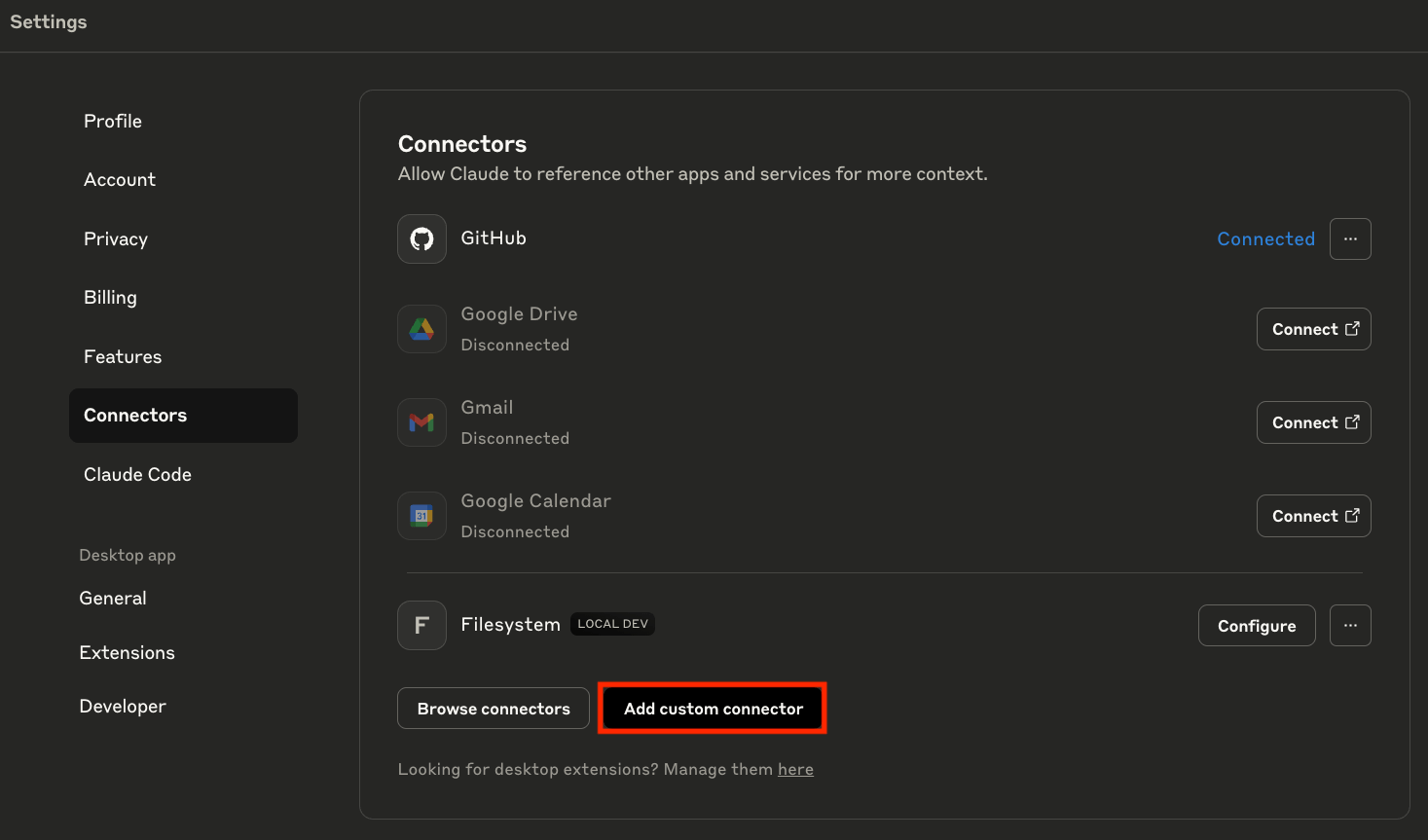
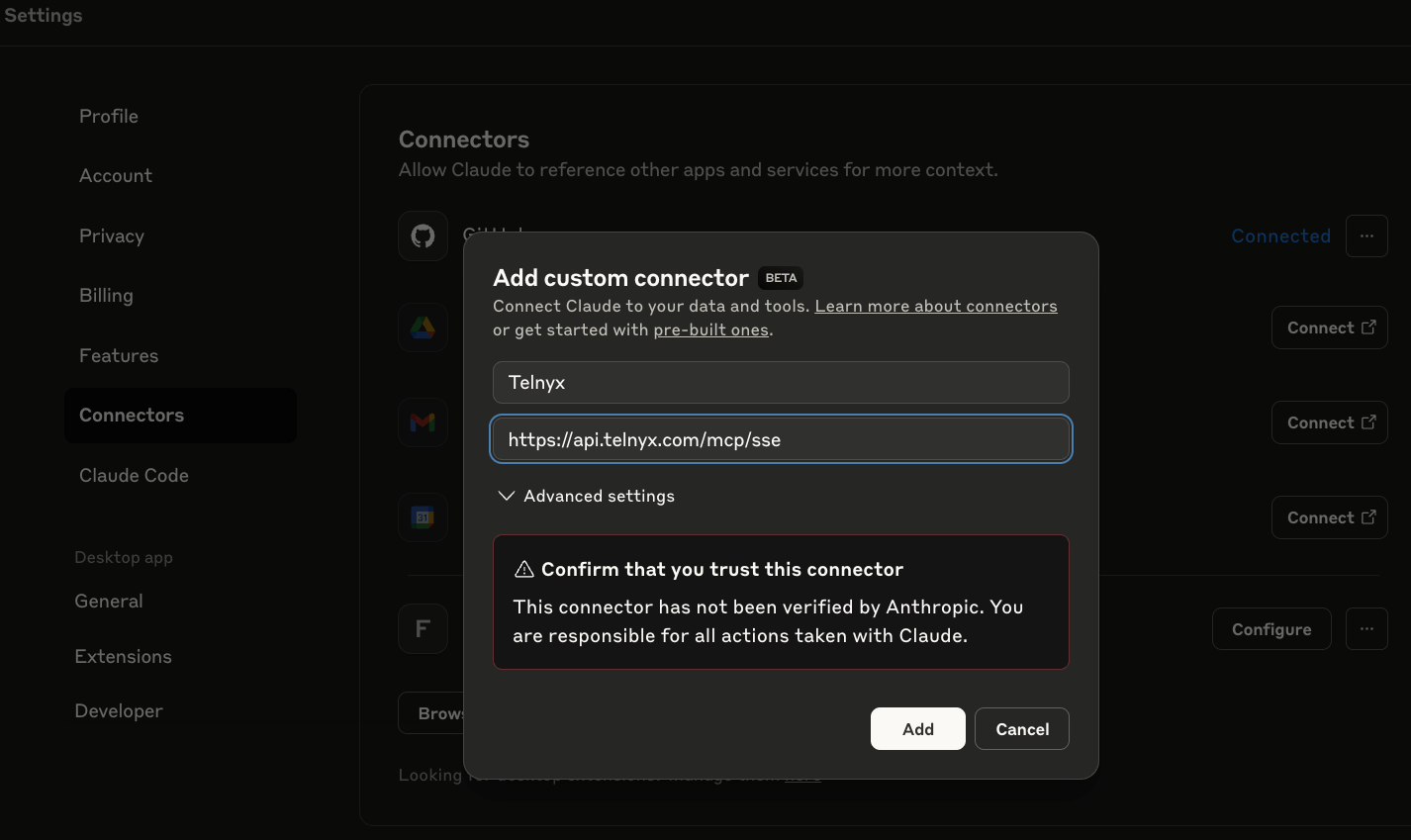
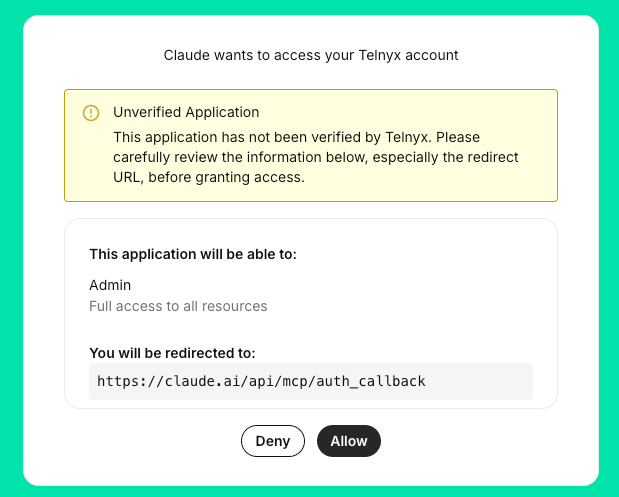
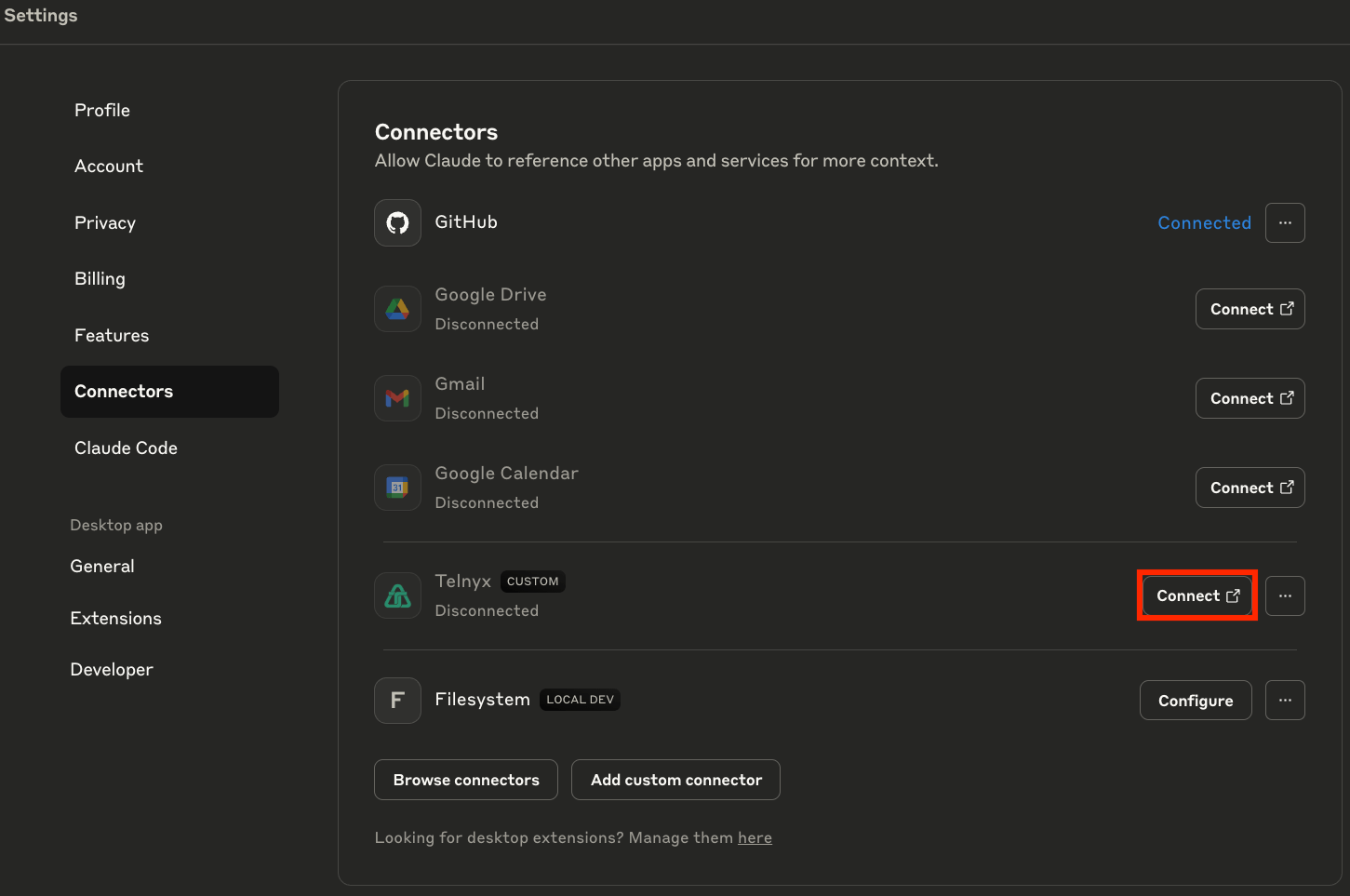 Grant access in the Telnyx Portal (must be logged in)
 ### Connect via API Key
1. Get your API key from the Telnyx Portal.
2. Install `node` and `npx`
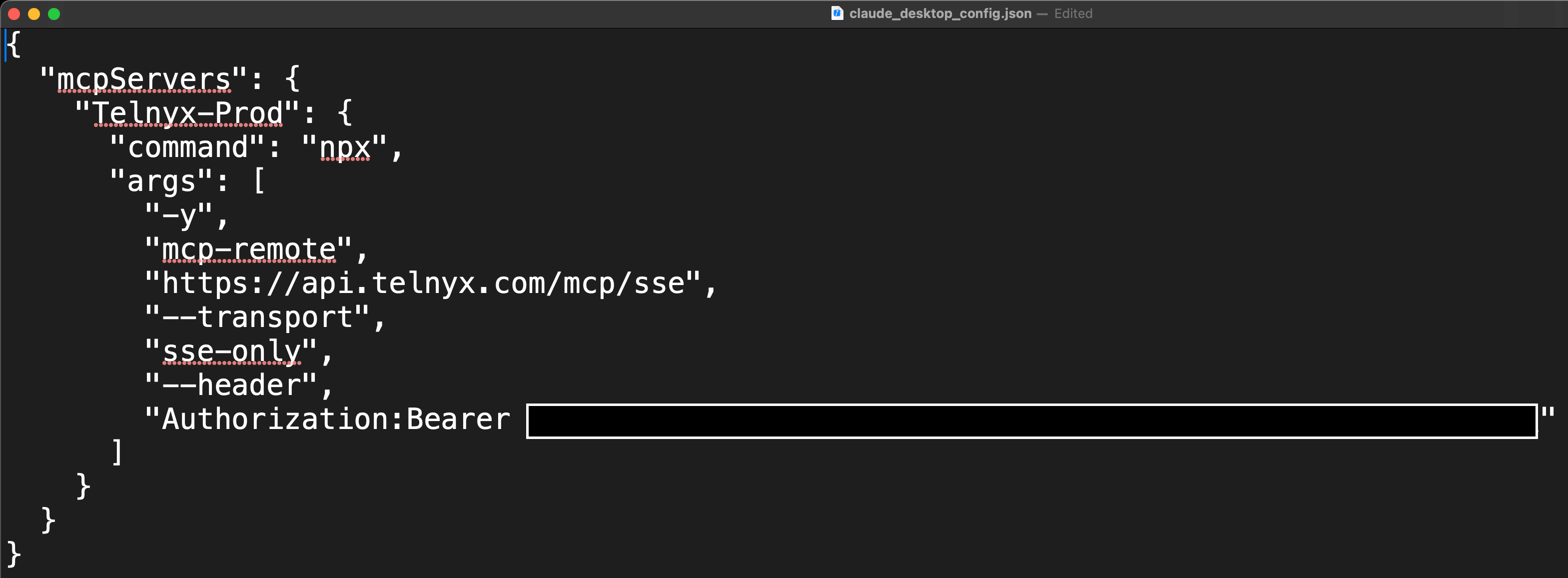
3. Go to Claude > Settings > Developer > Edit Config > claude\_desktop\_config.json
to include the following:
```json theme={null}
{
"mcpServers": {
"Telnyx-Remote-MCP": {
"command": "npx",
"args": [
"-y",
"mcp-remote",
"https://api.telnyx.com/mcp/sse",
"--transport",
"sse-only",
"--header",
"Authorization:Bearer "
]
}
}
}
```
### Connect via API Key
1. Get your API key from the Telnyx Portal.
2. Install `node` and `npx`
3. Go to Claude > Settings > Developer > Edit Config > claude\_desktop\_config.json
to include the following:
```json theme={null}
{
"mcpServers": {
"Telnyx-Remote-MCP": {
"command": "npx",
"args": [
"-y",
"mcp-remote",
"https://api.telnyx.com/mcp/sse",
"--transport",
"sse-only",
"--header",
"Authorization:Bearer "
]
}
}
}
```
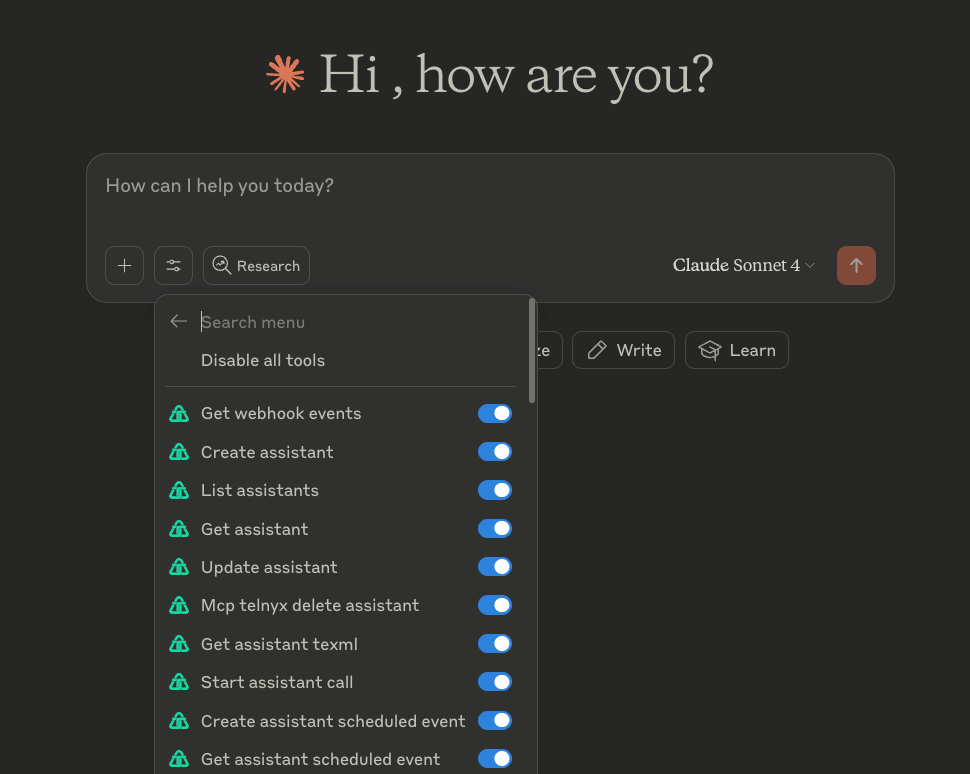
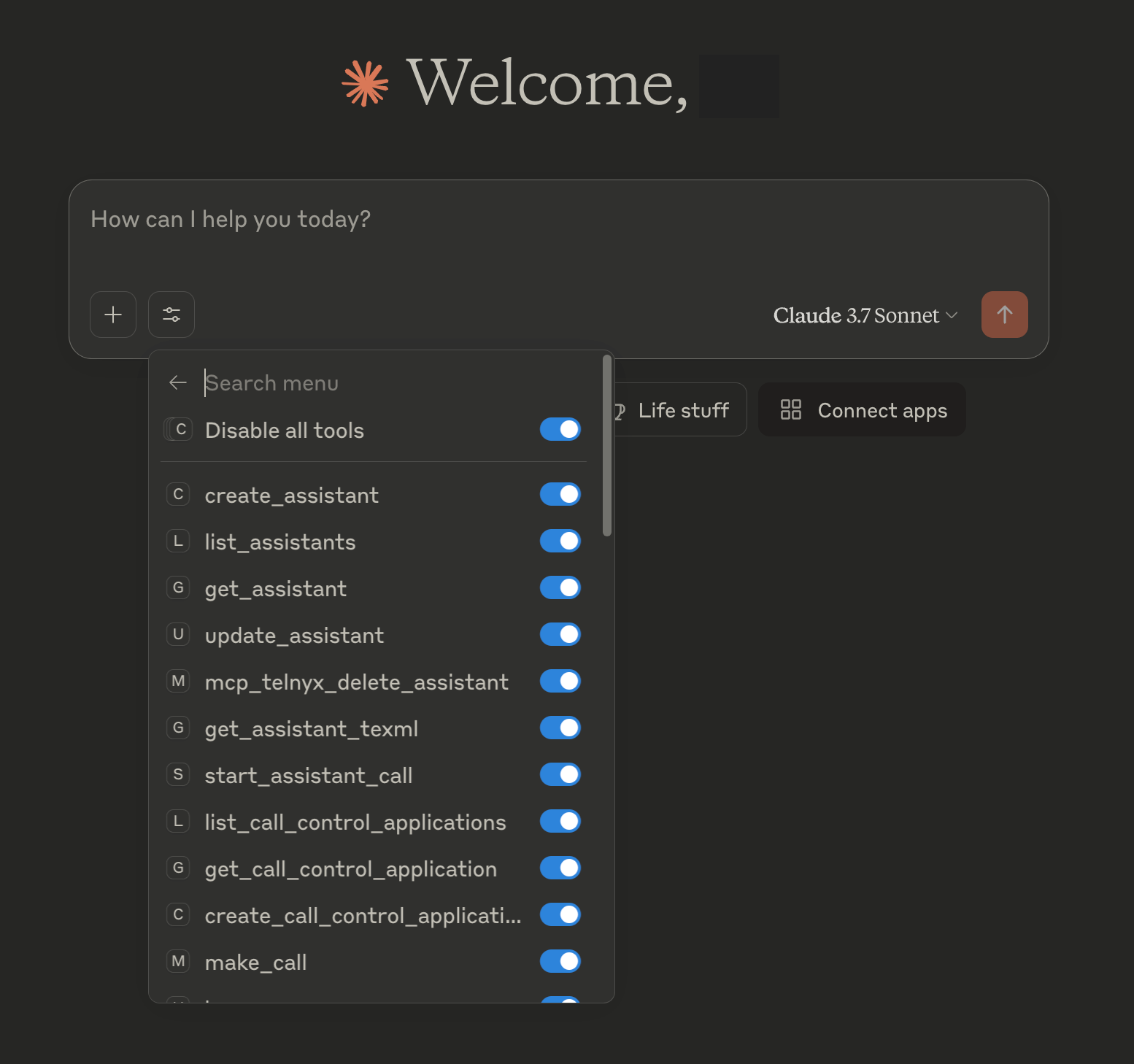
 Restart Claude Desktop and you should be able to see the Telnyx MCP server in
the list of available MCP servers.
Restart Claude Desktop and you should be able to see the Telnyx MCP server in
the list of available MCP servers.
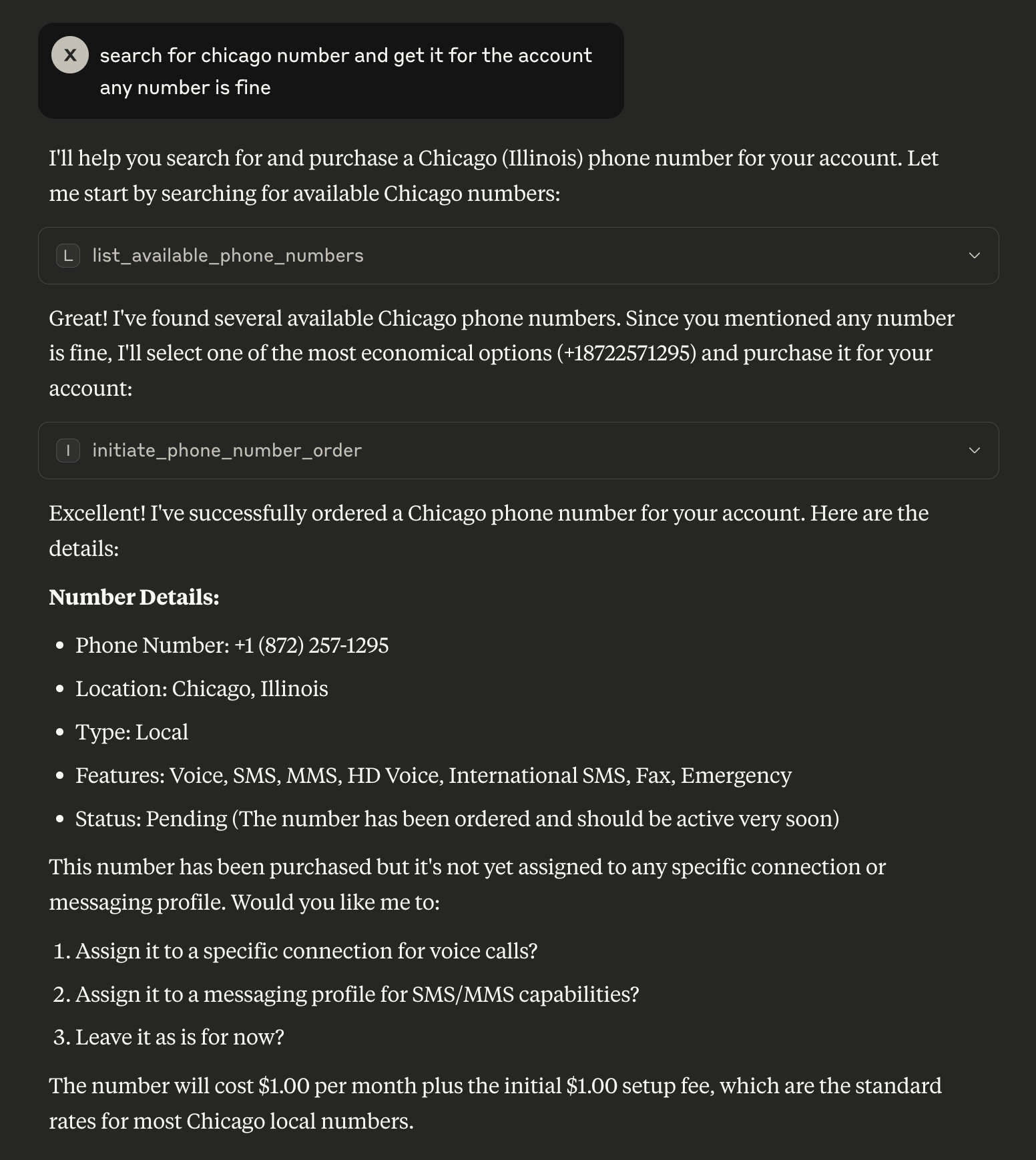
 You can try to search and purchase a number.
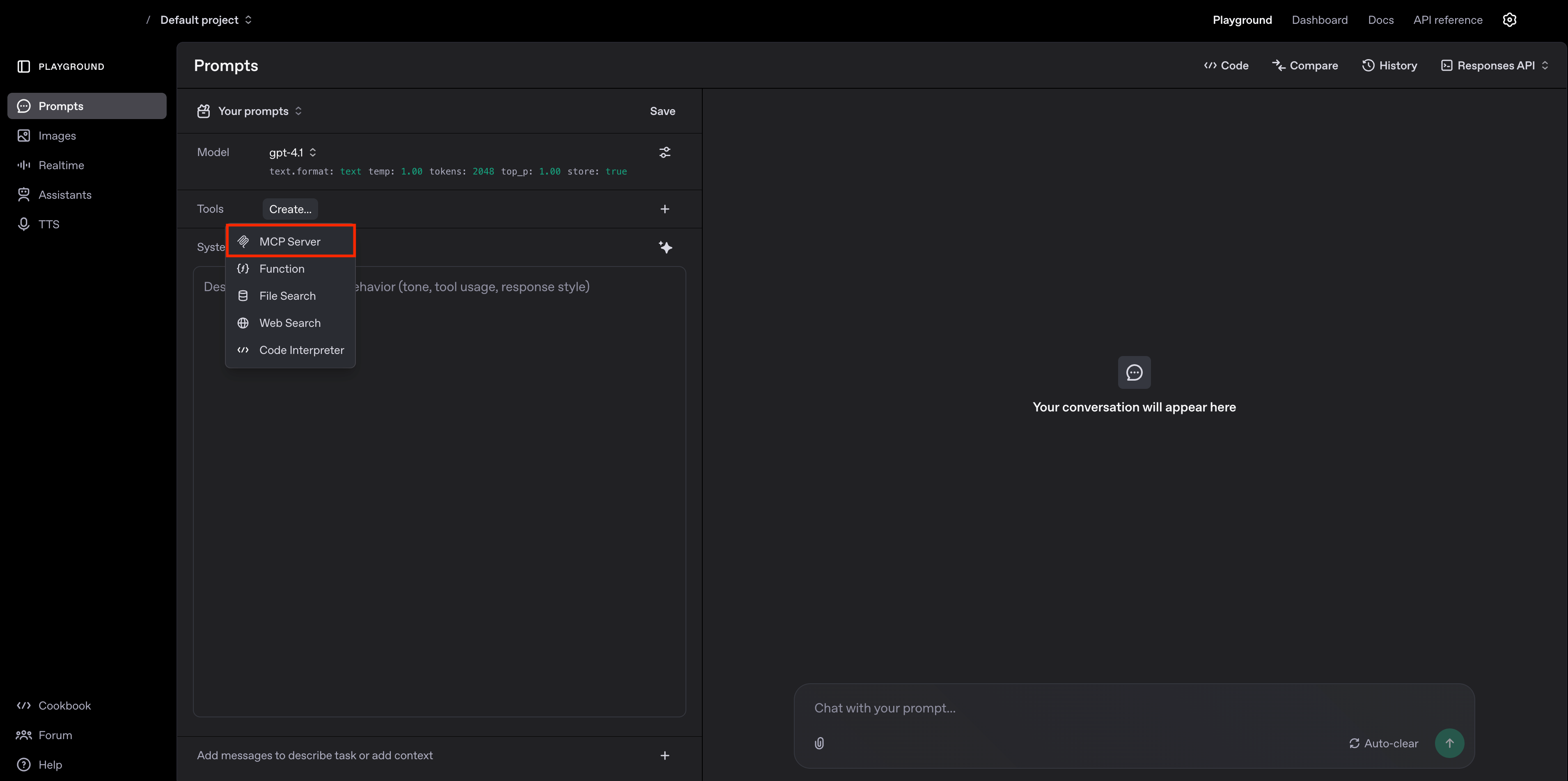
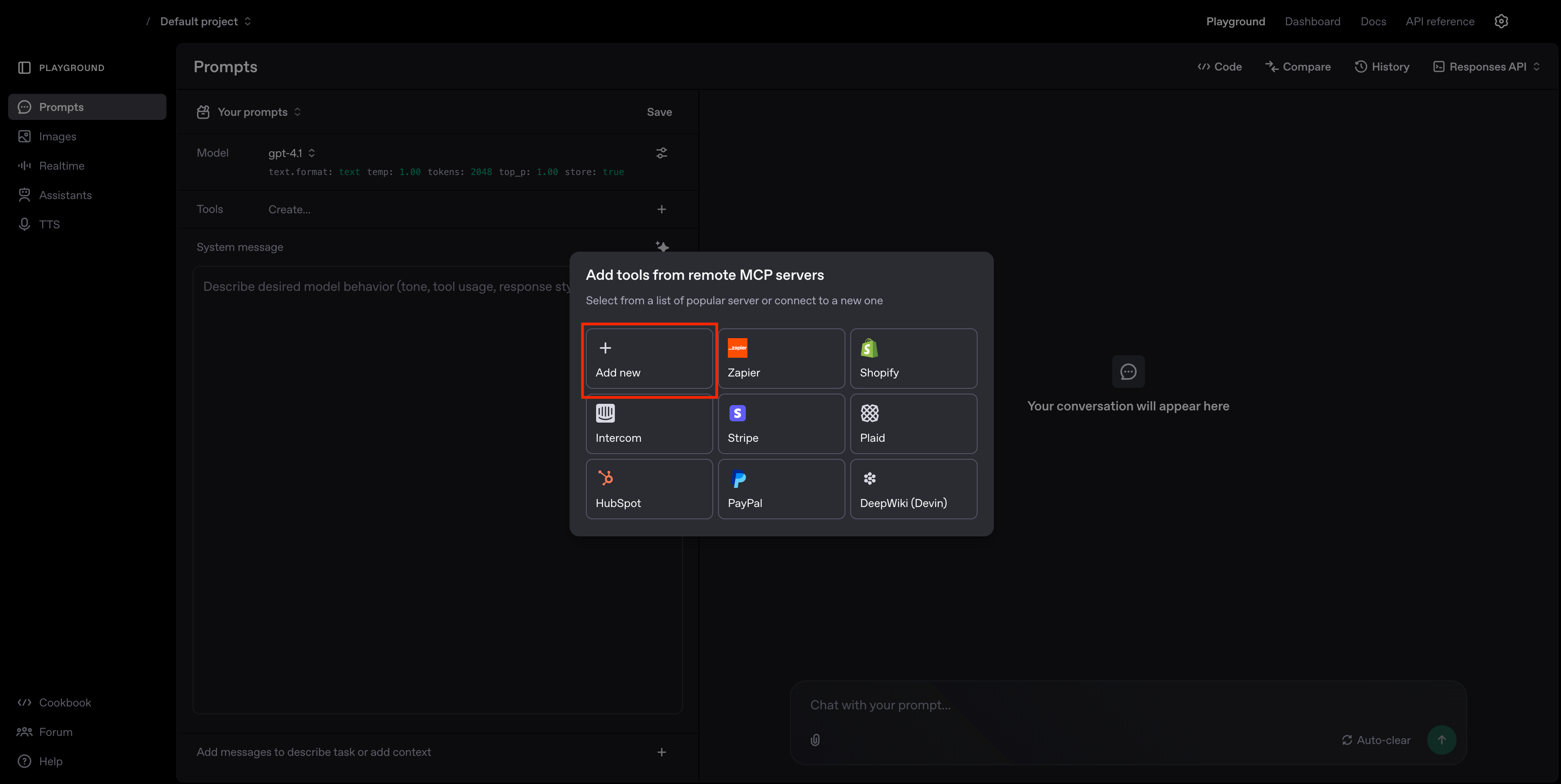
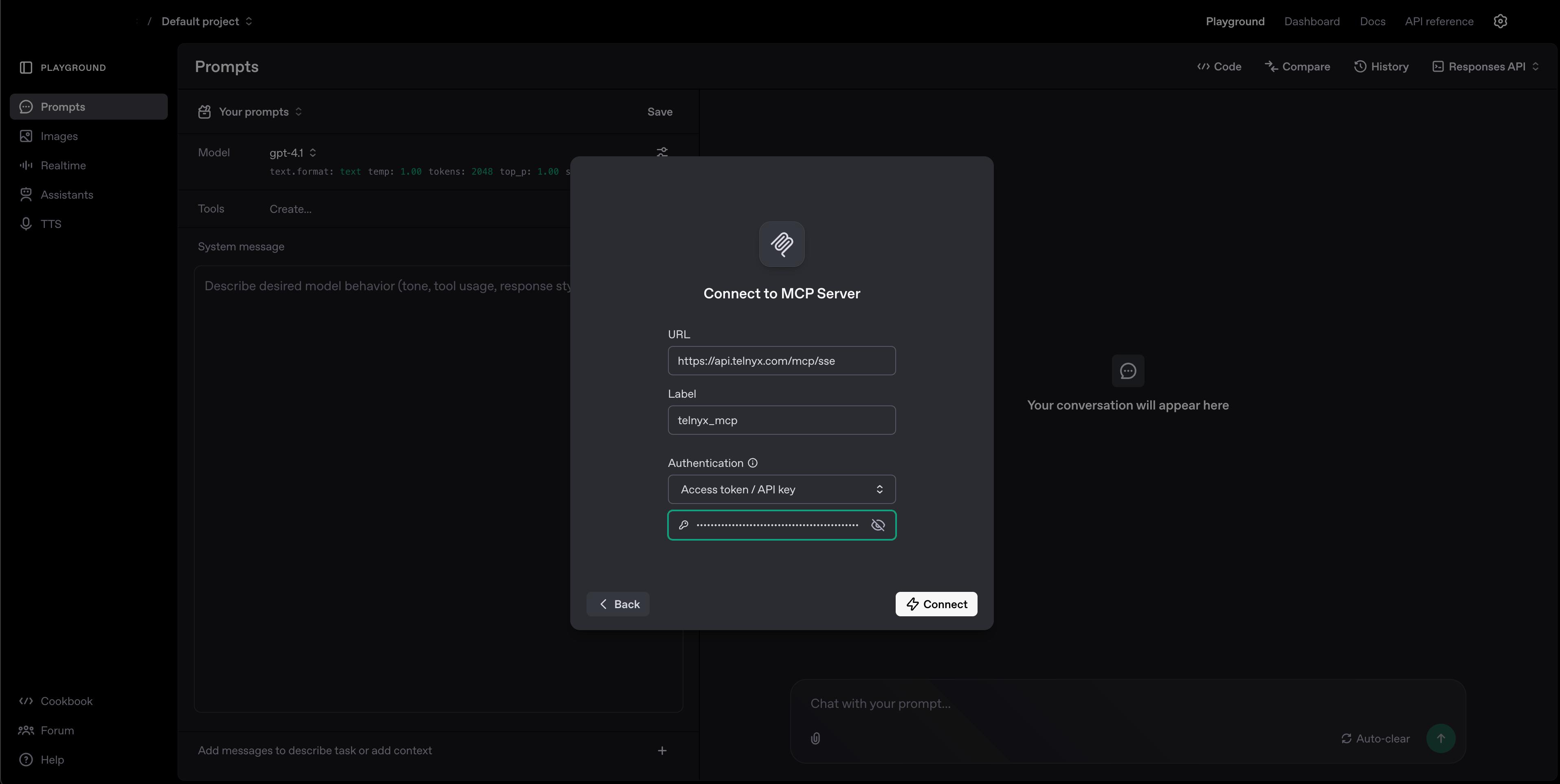
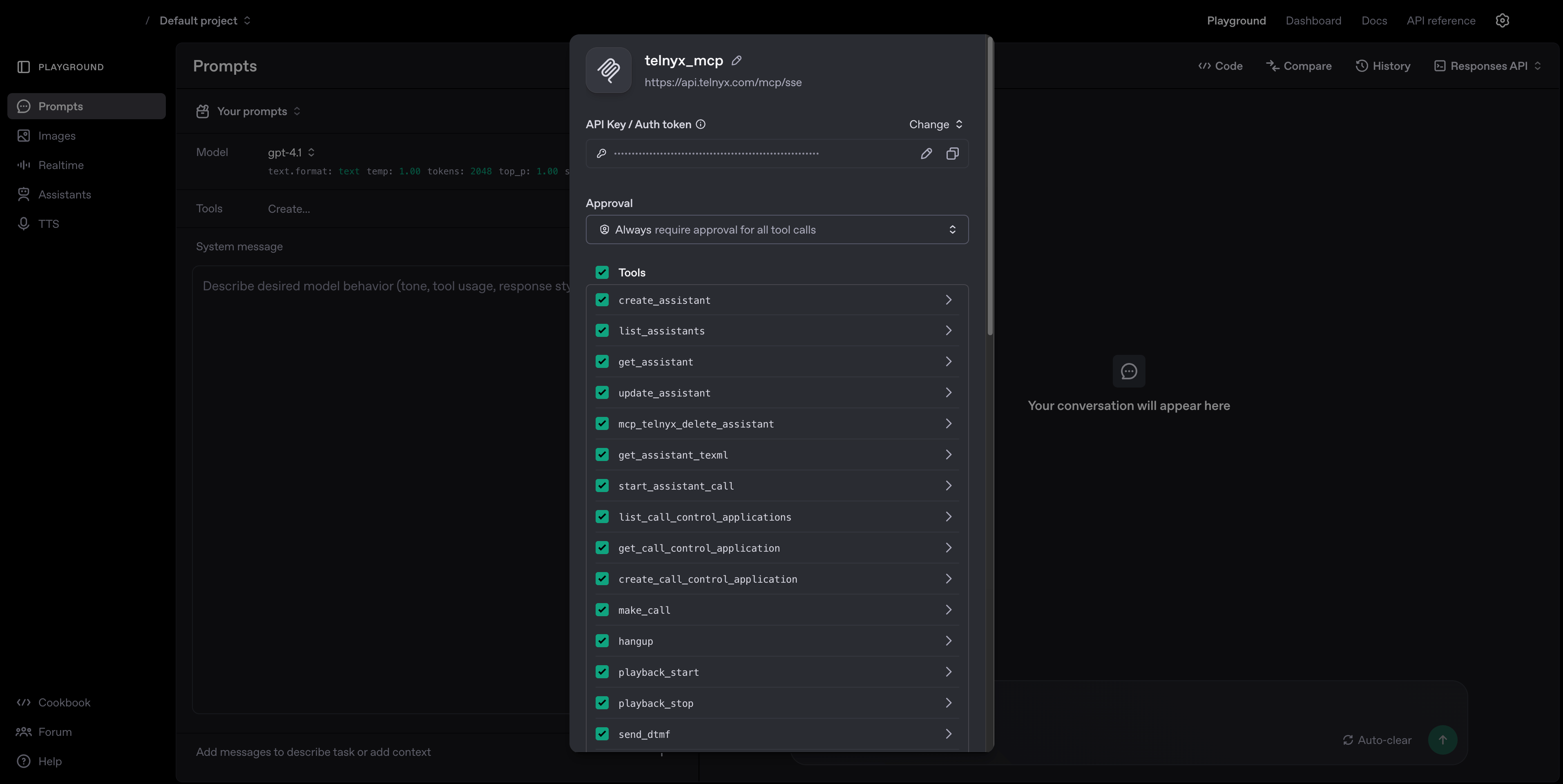
 ## Quickstart with ChatGPT Playground
 ## Available Tools
### Assistant Tools
* `create_assistant` - Create a new AI assistant
* `get_assistant` - Retrieve details of an existing assistant
* `get_assistant_texml` - Get an assistant's TEXML configuration
* `list_assistants` - List all available assistants
* `mcp_telnyx_delete_assistant` - Delete an existing assistant
* `start_assistant_call` - Initiate a call using an AI assistant
* `update_assistant` - Update an existing assistant's configuration
### Call Control Tools
* `create_call_control_application` - Create a new call control application
* `get_call_control_application` - Get details of a call control application
* `hangup` - End an active call
* `list_call_control_applications` - List all call control applications
* `make_call` - Initiate a new outbound call
* `playback_start` - Start audio playback during a call
* `playback_stop` - Stop audio playback during a call
* `send_dtmf` - Send DTMF tones during a call
* `speak` - Use text-to-speech during a call
* `transfer` - Transfer a call to a new destination
### Cloud Storage Tools
* `cloud_storage_create_bucket` - Create a new storage bucket
* `cloud_storage_list_buckets` - List all available storage buckets
* `cloud_storage_upload_file` - Upload a file to cloud storage
* `cloud_storage_download_file` - Download a file from cloud storage
* `cloud_storage_list_objects` - List objects within a bucket
* `cloud_storage_delete_object` - Delete an object from cloud storage
* `cloud_storage_get_bucket_location` - Get a bucket's region location
### Connection Tools
* `get_connection` - Get details of a connection
* `list_connections` - List all available connections
* `update_connection` - Update an existing connection
### Embeddings Tools
* `create_embeddings` - Create embeddings for a bucket with files
* `embed_url` - Scrape and embed a website's content
* `list_embedded_buckets` - List all embedded buckets
### Messaging Tools
* `send_message` - Send an SMS/MMS message
* `get_message` - Retrieve details of a sent message
### Messaging Profile Tools
* `create_messaging_profile` - Create a new messaging profile
* `get_messaging_profile` - Get details of a messaging profile
* `list_messaging_profiles` - List all messaging profiles
* `update_messaging_profile` - Update an existing messaging profile
### Phone Number Tools
* `initiate_phone_number_order` - Order a new phone number
* `get_phone_number` - Get details of a phone number
* `list_available_phone_numbers` - List available phone numbers for purchase
* `list_phone_numbers` - List all phone numbers in your account
* `update_phone_number` - Update phone number configuration
* `update_phone_number_messaging_settings` - Update messaging settings for a number
### Secrets Manager Tools
* `create_integration_secret` - Create a new integration secret
* `delete_integration_secret` - Delete an integration secret
* `list_integration_secrets` - List all integration secrets
## Available Tools
### Assistant Tools
* `create_assistant` - Create a new AI assistant
* `get_assistant` - Retrieve details of an existing assistant
* `get_assistant_texml` - Get an assistant's TEXML configuration
* `list_assistants` - List all available assistants
* `mcp_telnyx_delete_assistant` - Delete an existing assistant
* `start_assistant_call` - Initiate a call using an AI assistant
* `update_assistant` - Update an existing assistant's configuration
### Call Control Tools
* `create_call_control_application` - Create a new call control application
* `get_call_control_application` - Get details of a call control application
* `hangup` - End an active call
* `list_call_control_applications` - List all call control applications
* `make_call` - Initiate a new outbound call
* `playback_start` - Start audio playback during a call
* `playback_stop` - Stop audio playback during a call
* `send_dtmf` - Send DTMF tones during a call
* `speak` - Use text-to-speech during a call
* `transfer` - Transfer a call to a new destination
### Cloud Storage Tools
* `cloud_storage_create_bucket` - Create a new storage bucket
* `cloud_storage_list_buckets` - List all available storage buckets
* `cloud_storage_upload_file` - Upload a file to cloud storage
* `cloud_storage_download_file` - Download a file from cloud storage
* `cloud_storage_list_objects` - List objects within a bucket
* `cloud_storage_delete_object` - Delete an object from cloud storage
* `cloud_storage_get_bucket_location` - Get a bucket's region location
### Connection Tools
* `get_connection` - Get details of a connection
* `list_connections` - List all available connections
* `update_connection` - Update an existing connection
### Embeddings Tools
* `create_embeddings` - Create embeddings for a bucket with files
* `embed_url` - Scrape and embed a website's content
* `list_embedded_buckets` - List all embedded buckets
### Messaging Tools
* `send_message` - Send an SMS/MMS message
* `get_message` - Retrieve details of a sent message
### Messaging Profile Tools
* `create_messaging_profile` - Create a new messaging profile
* `get_messaging_profile` - Get details of a messaging profile
* `list_messaging_profiles` - List all messaging profiles
* `update_messaging_profile` - Update an existing messaging profile
### Phone Number Tools
* `initiate_phone_number_order` - Order a new phone number
* `get_phone_number` - Get details of a phone number
* `list_available_phone_numbers` - List available phone numbers for purchase
* `list_phone_numbers` - List all phone numbers in your account
* `update_phone_number` - Update phone number configuration
* `update_phone_number_messaging_settings` - Update messaging settings for a number
### Secrets Manager Tools
* `create_integration_secret` - Create a new integration secret
* `delete_integration_secret` - Delete an integration secret
* `list_integration_secrets` - List all integration secrets